Create and edit documents
Choose a document template and describe what you need in chat. Taxxa creates a draft, such as board meeting minutes, from the details you provide. Review the PDF and edit the document fields in the same workspace.

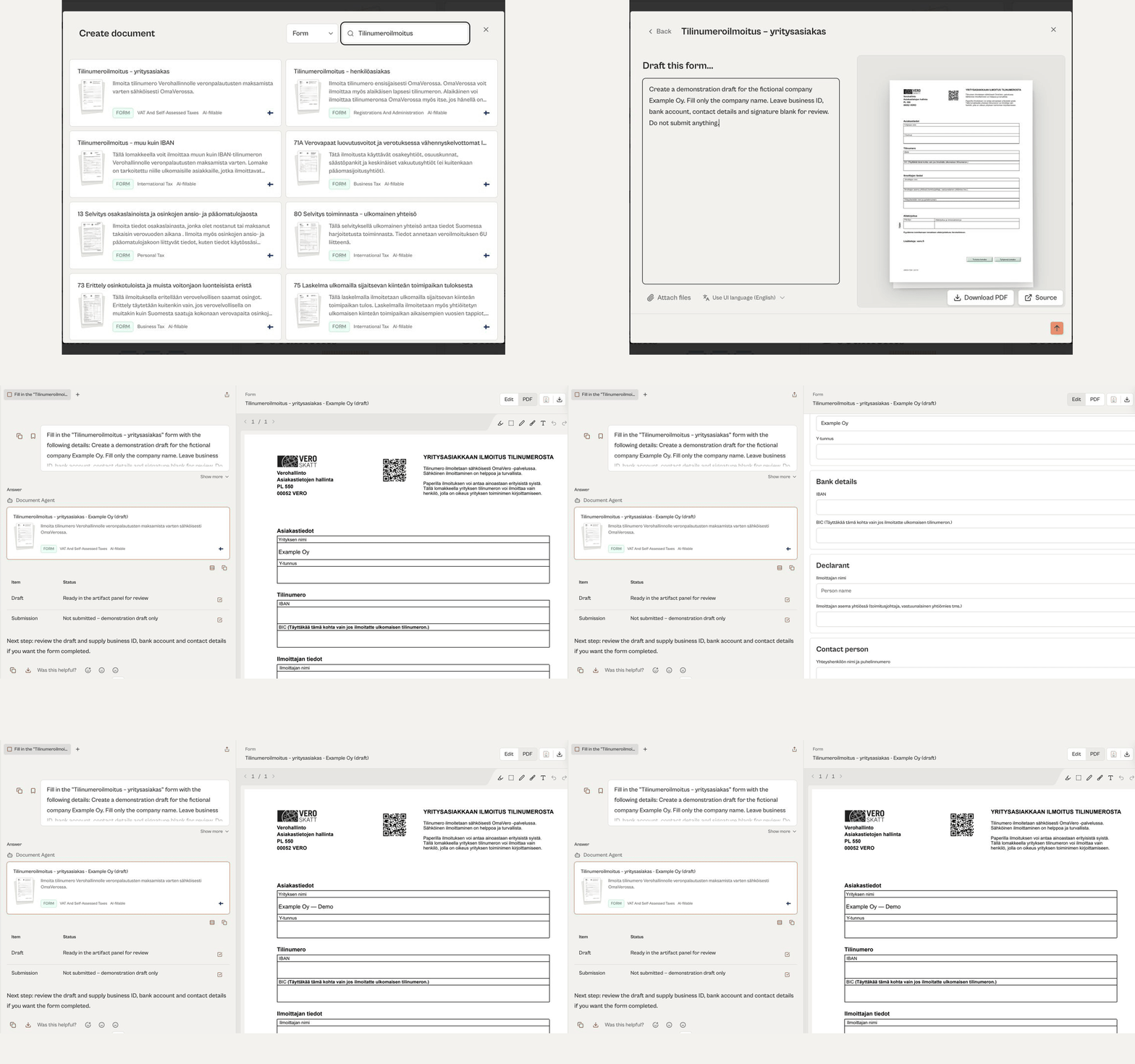
Find supported official forms in the Documents catalog and give the details you have. The AI creates a draft in the form's original PDF layout. Review and edit any field, then download the PDF when it is ready.

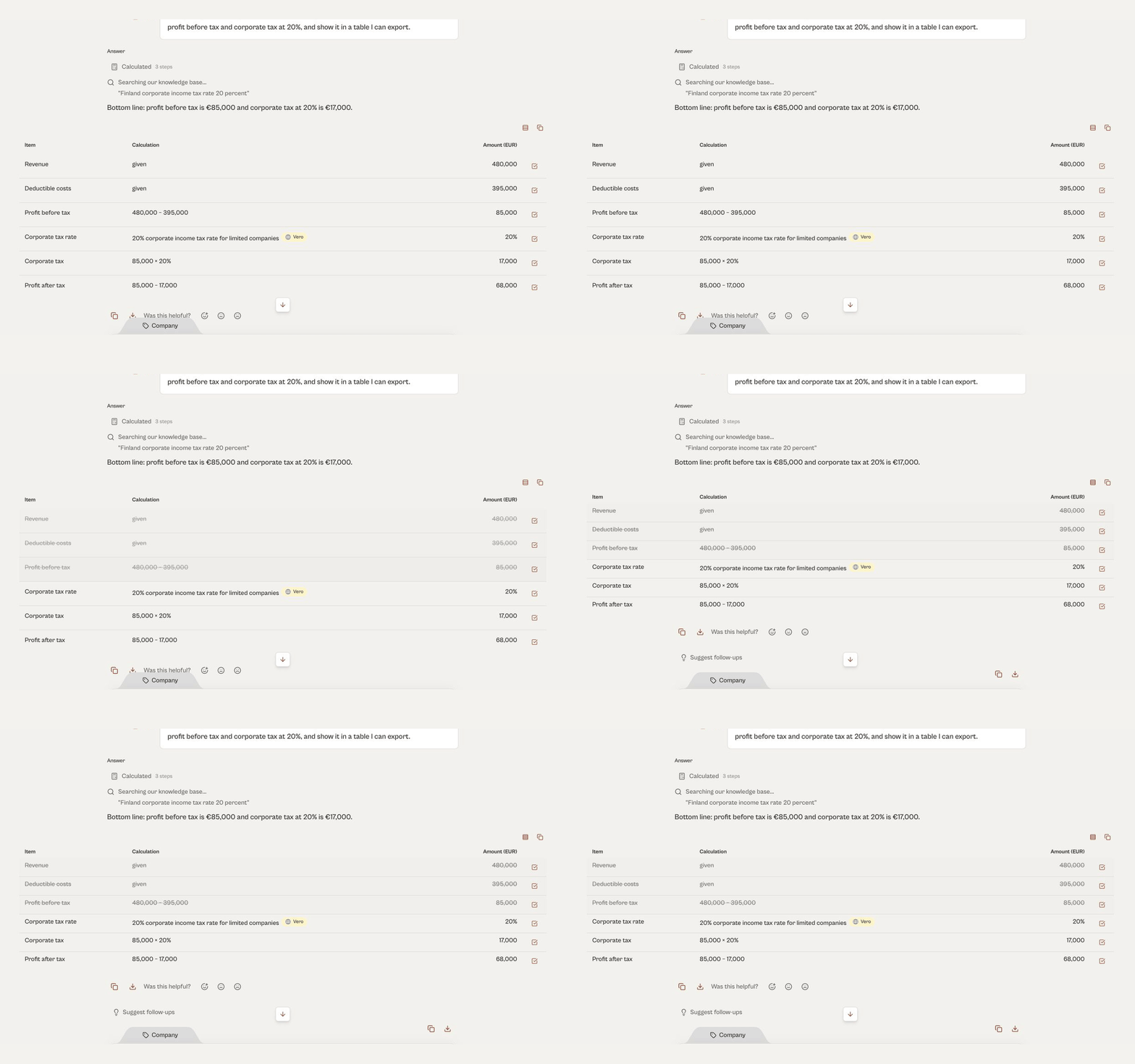
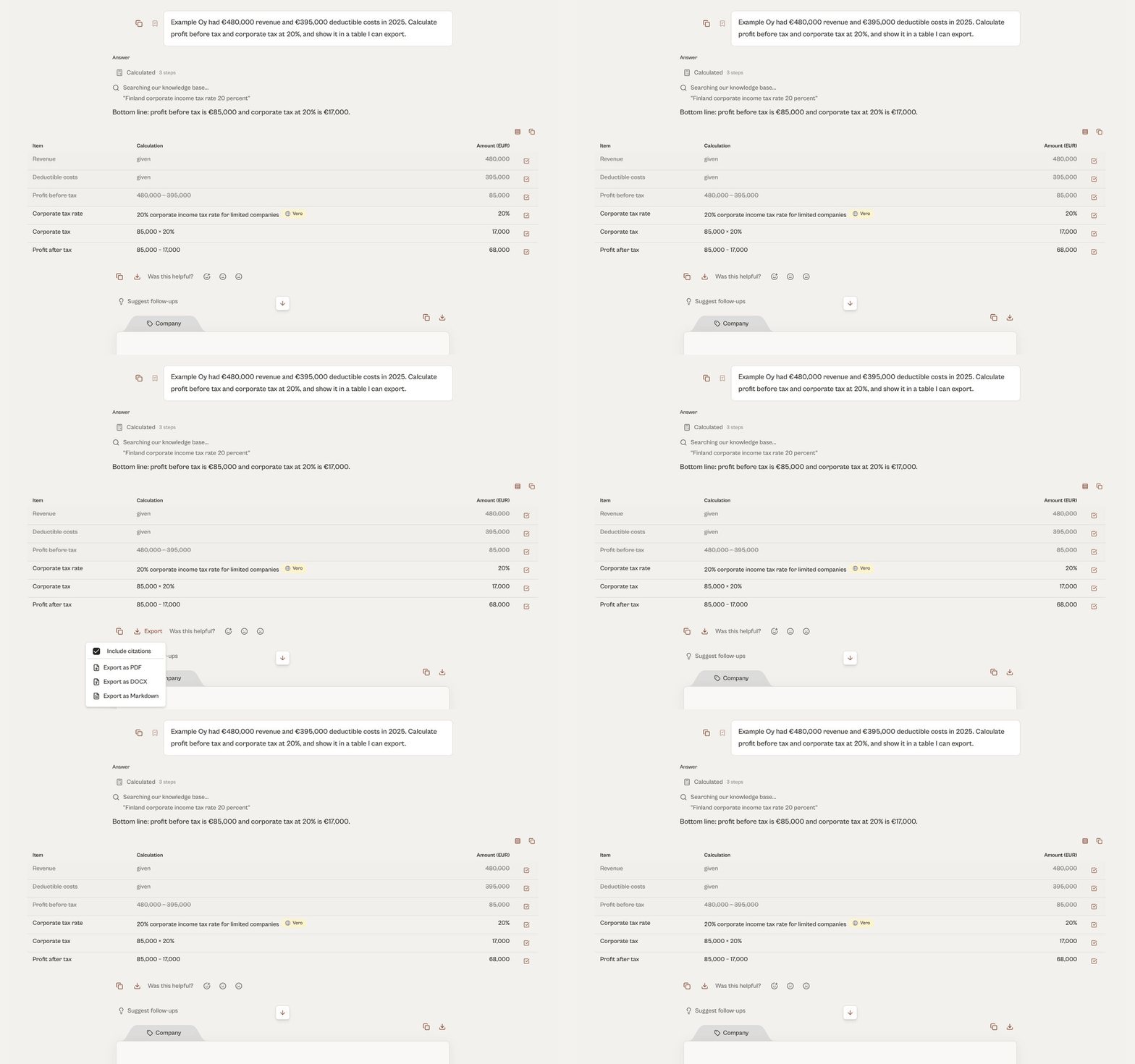
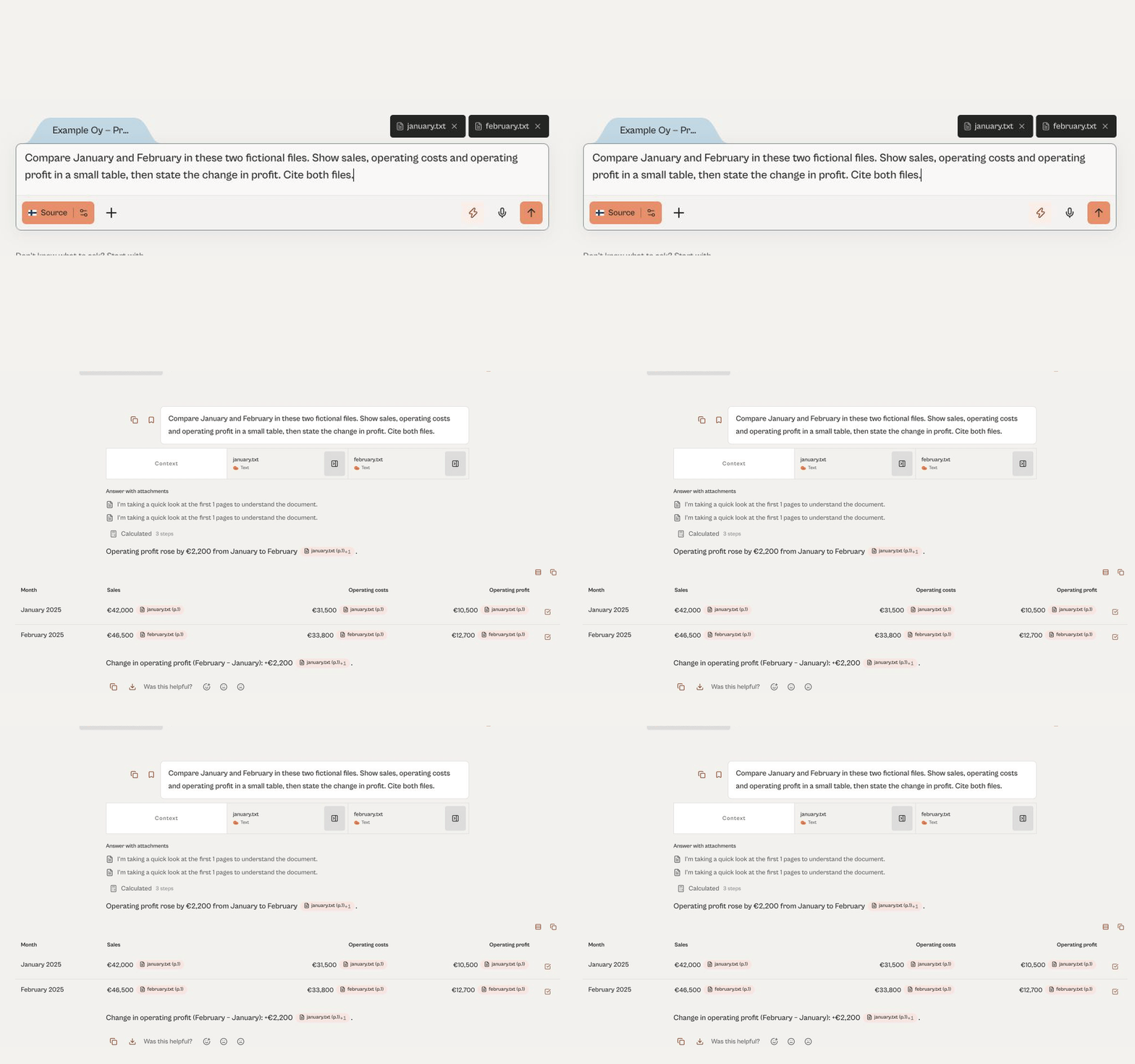
When an answer includes a calculation table, you can mark individual rows as reviewed while you check the figures. Switch between Compact and Comfortable views, or copy the table. Row marks are a temporary aid for your own review, not a recorded approval.
Mark up any document right where you read it. Highlight passages in multiple colours, drop a sticky note anywhere on the page. You can export the annotated PDF when the review is done.

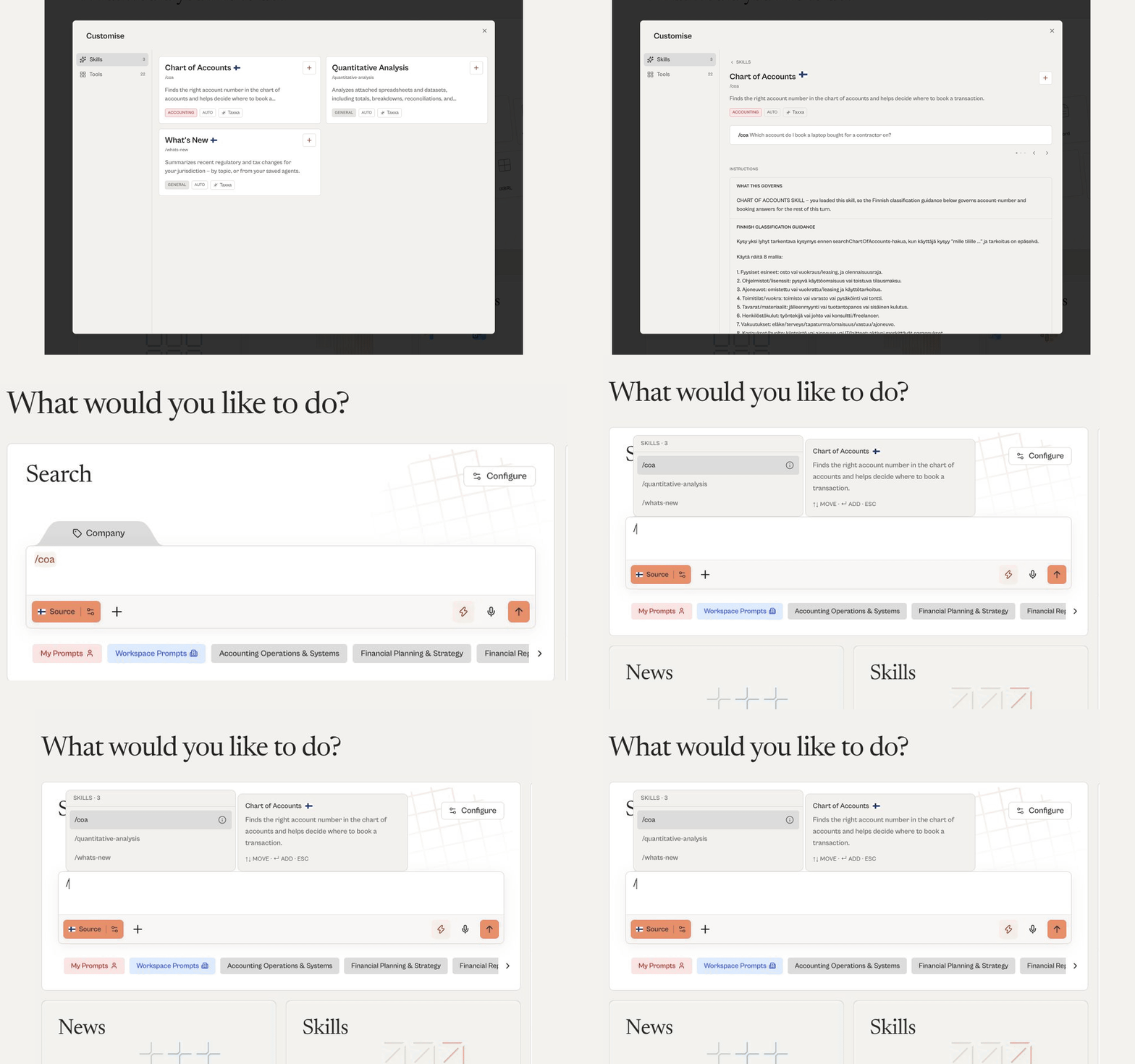
Browse the available skills in Customise to see what each one does, with an example question. Select a skill to add it to your message, or type / in the message field to pick one from a list. Available skills can vary by country.

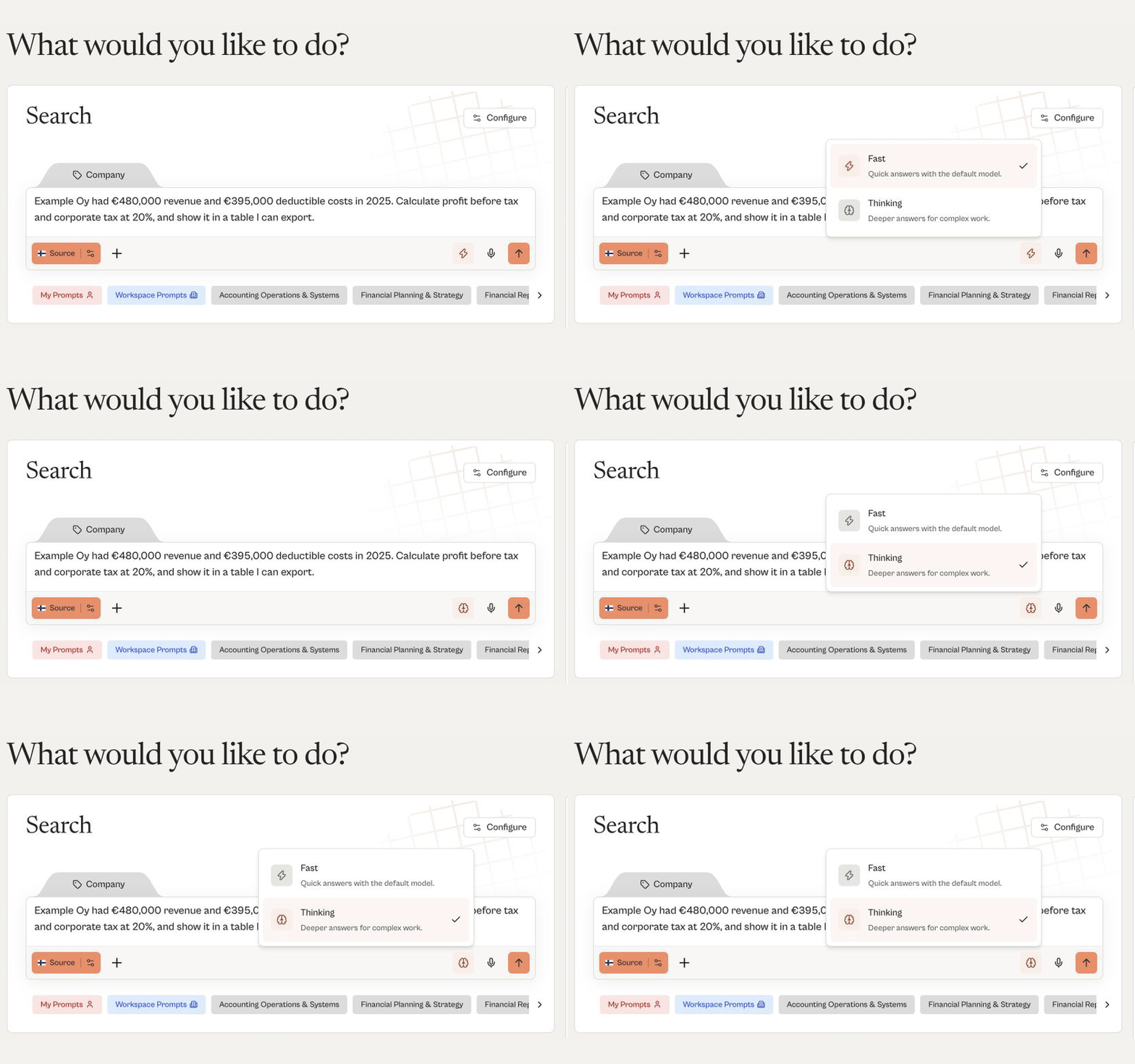
Choose how the assistant responds from the menu in the message field. Fast gives quick answers with the default model, and Thinking gives deeper answers for complex work. The selected option is marked in the menu.
Attach PDFs, spreadsheets, Word files and more to any question, and Taxxa answers straight from them! Every claim linked back to the exact page so you can click and check. Save files to Sources once and reuse them across every chat, right alongside the verified Knowledge Base.

You can now export an answer as a Word document (DOCX) from the Export menu, alongside PDF and Markdown. Select Include citations to keep the sources with the text. Open the file in Word to edit it or use it outside the chat.
Newsfeed surfaces every new and updated rule across your jurisdictions, ranked by what matters to your work. Open any change for a plain-language AI breakdown — or hit play on the weekly audio digest and catch up while you work.

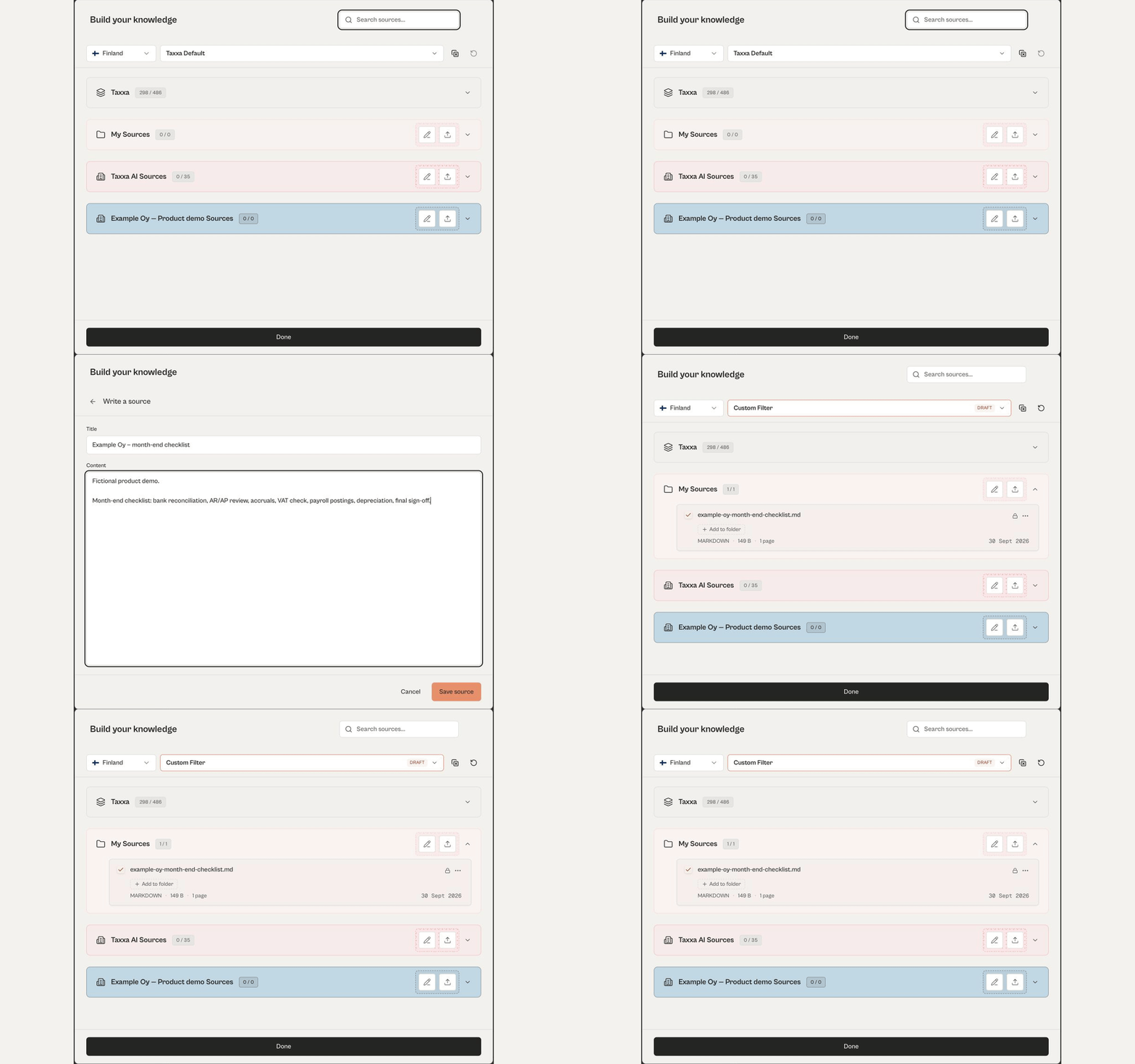
Turn typed or pasted notes into source material without uploading a file. In Sources, open My Sources and choose Write, then add a title and text. The source is saved as Markdown, and you can select it in any chat.

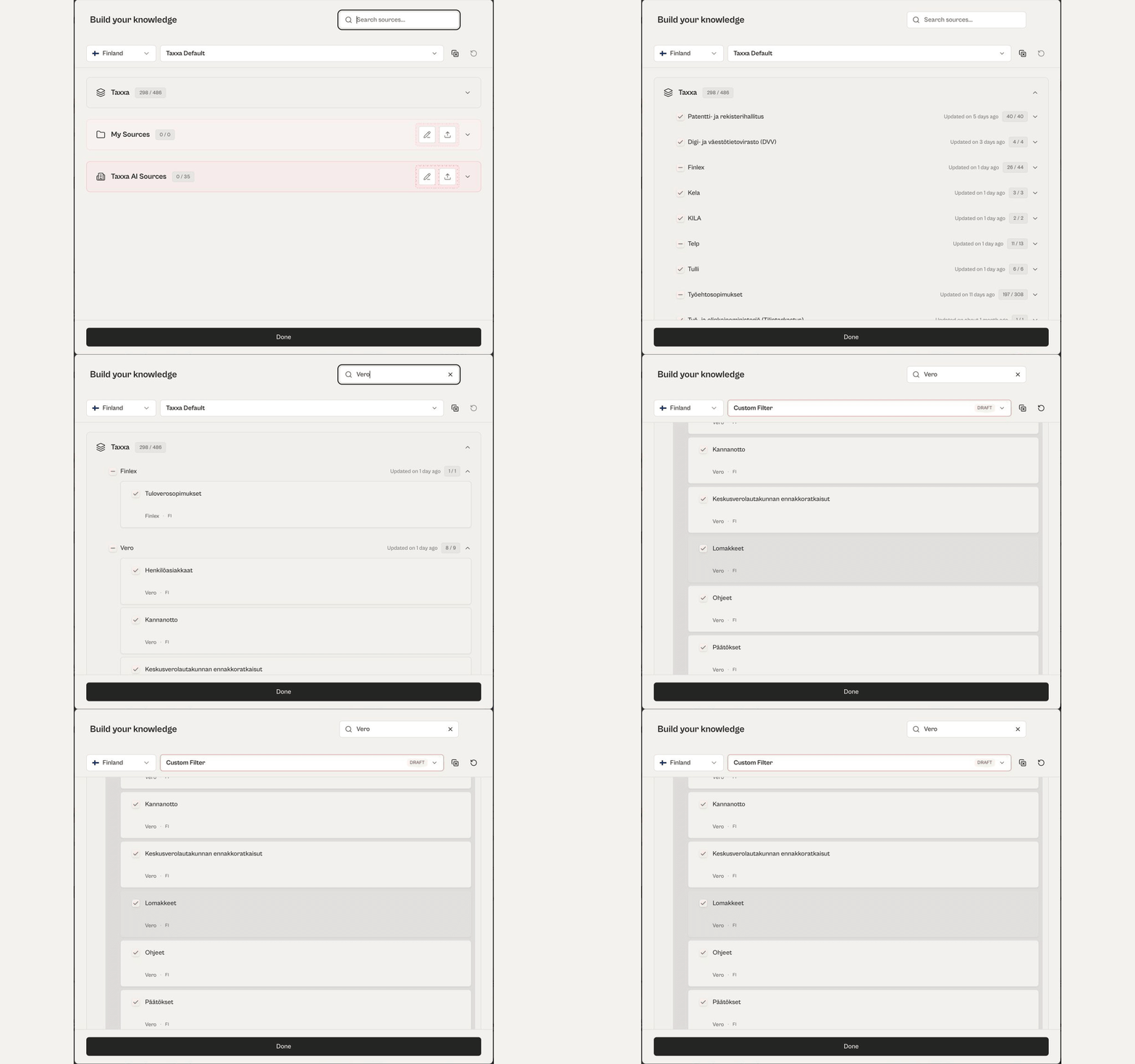
Choose a country, then pick the sources and categories you want the assistant to focus on. Expand a source to see its categories, or search to find a specific one. The selection count shows how many items you have chosen.

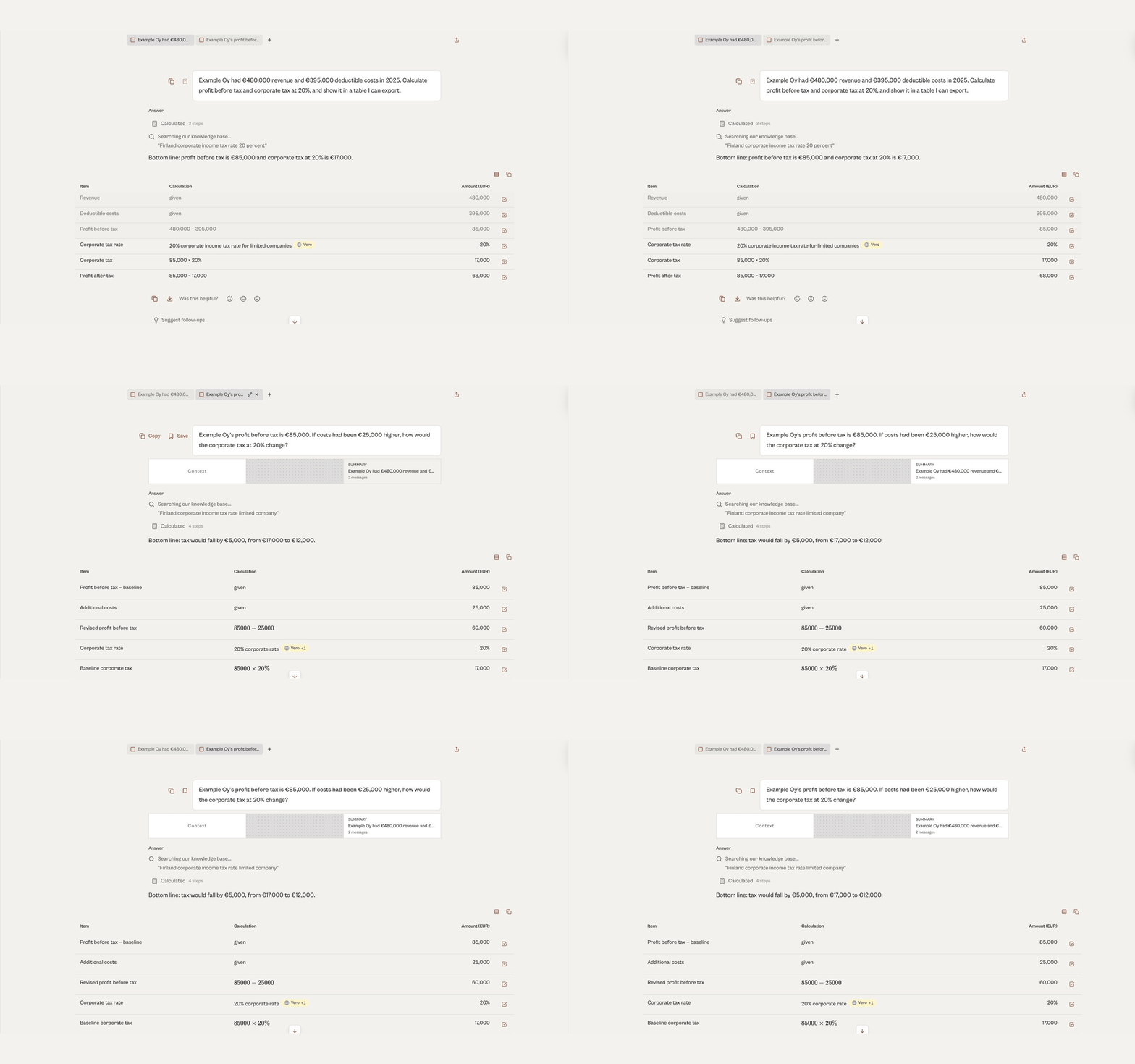
Open a new tab in a chat to ask a separate question without starting another chat. Switch between tabs whenever you need. If earlier work is relevant, use Add chat summaries to bring a summary of another tab into your new question.

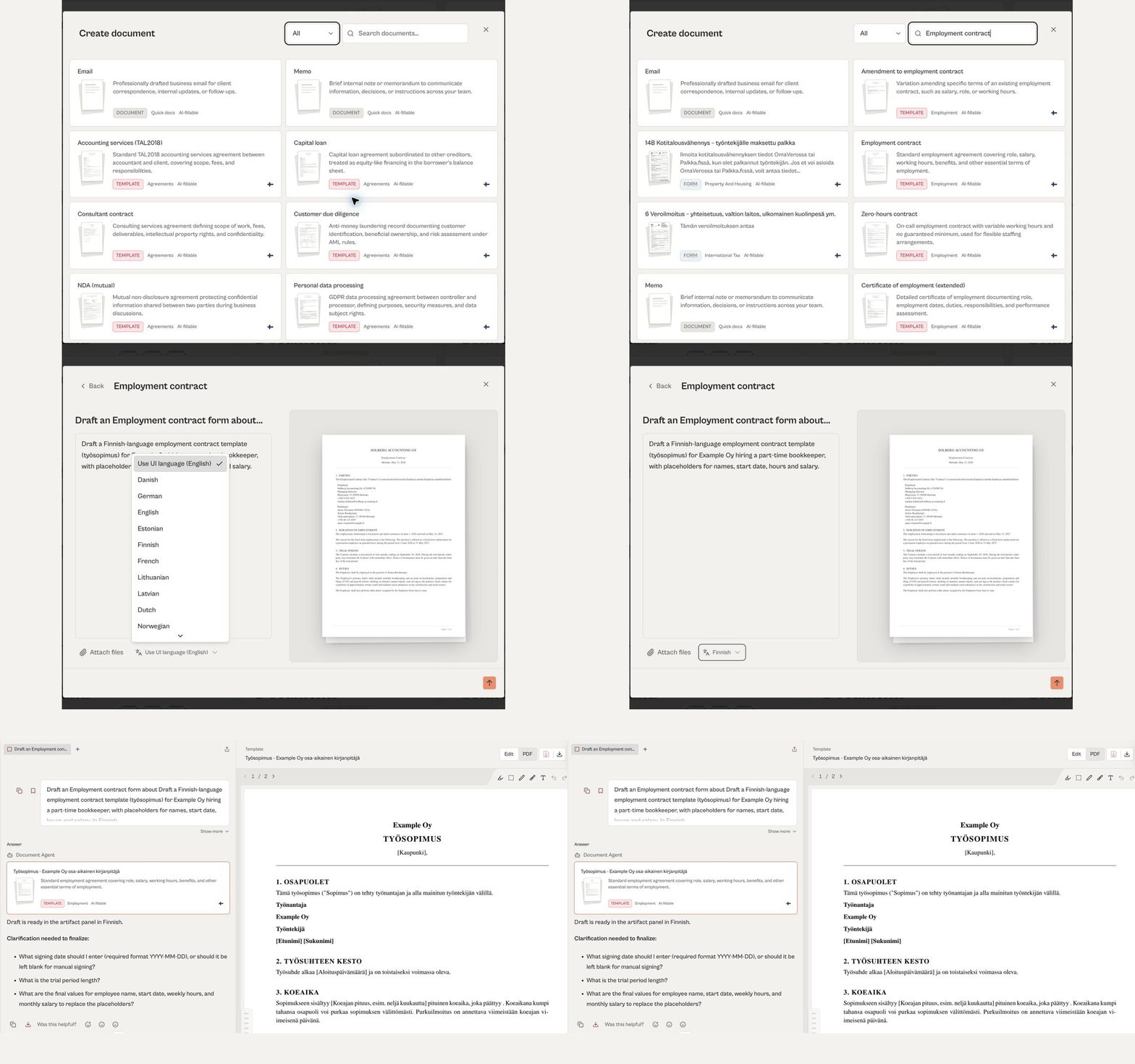
Open Documents to browse document types and templates. Pick a template, such as an employment contract, describe what you need and choose the output language. Review and edit the draft before you use it. A template is a starting point, not a finished document.

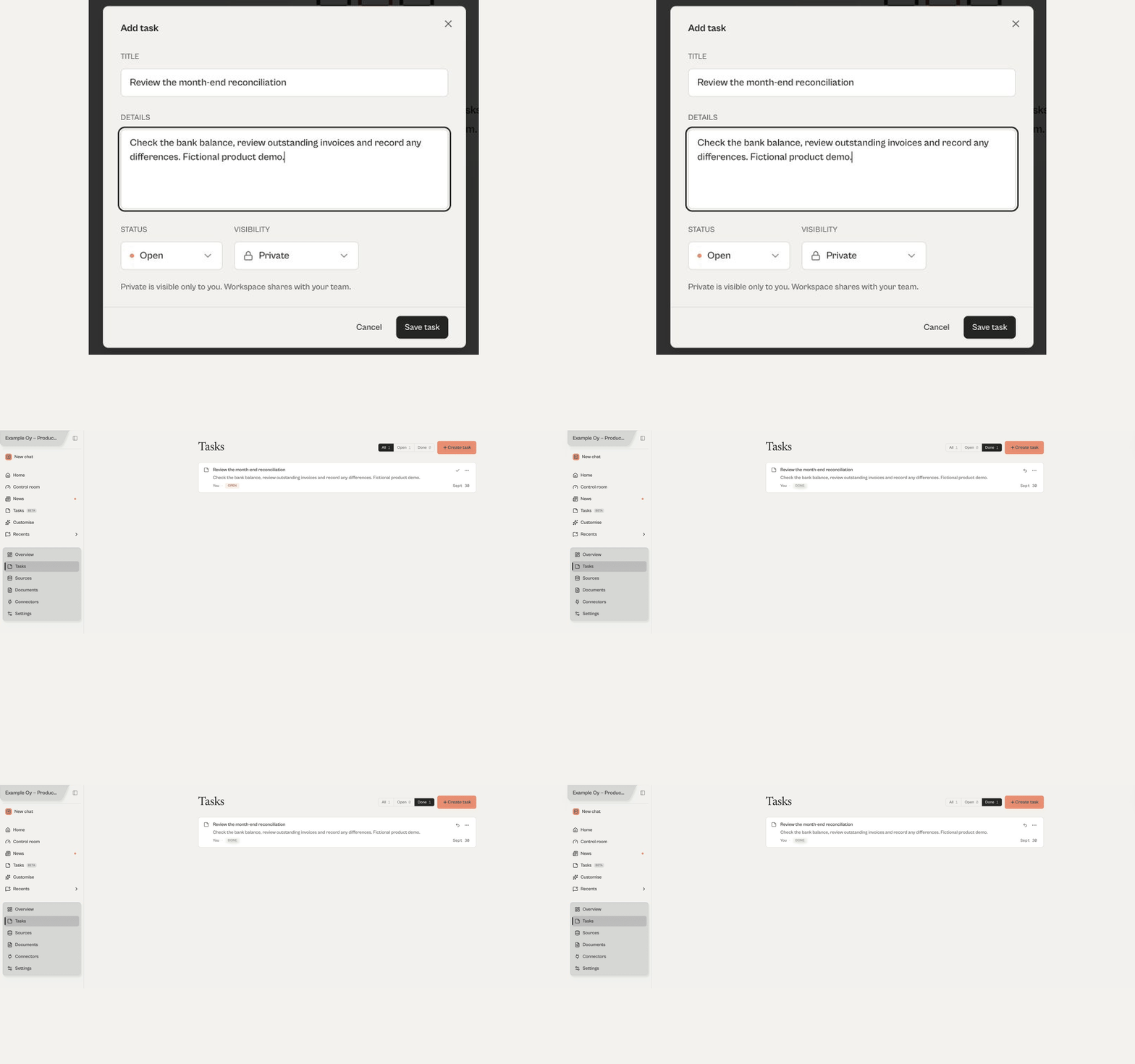
Capture follow-up work as tasks under the company it belongs to. Add a title and details, then mark the task done when it is complete. Use the Done filter to see finished tasks.

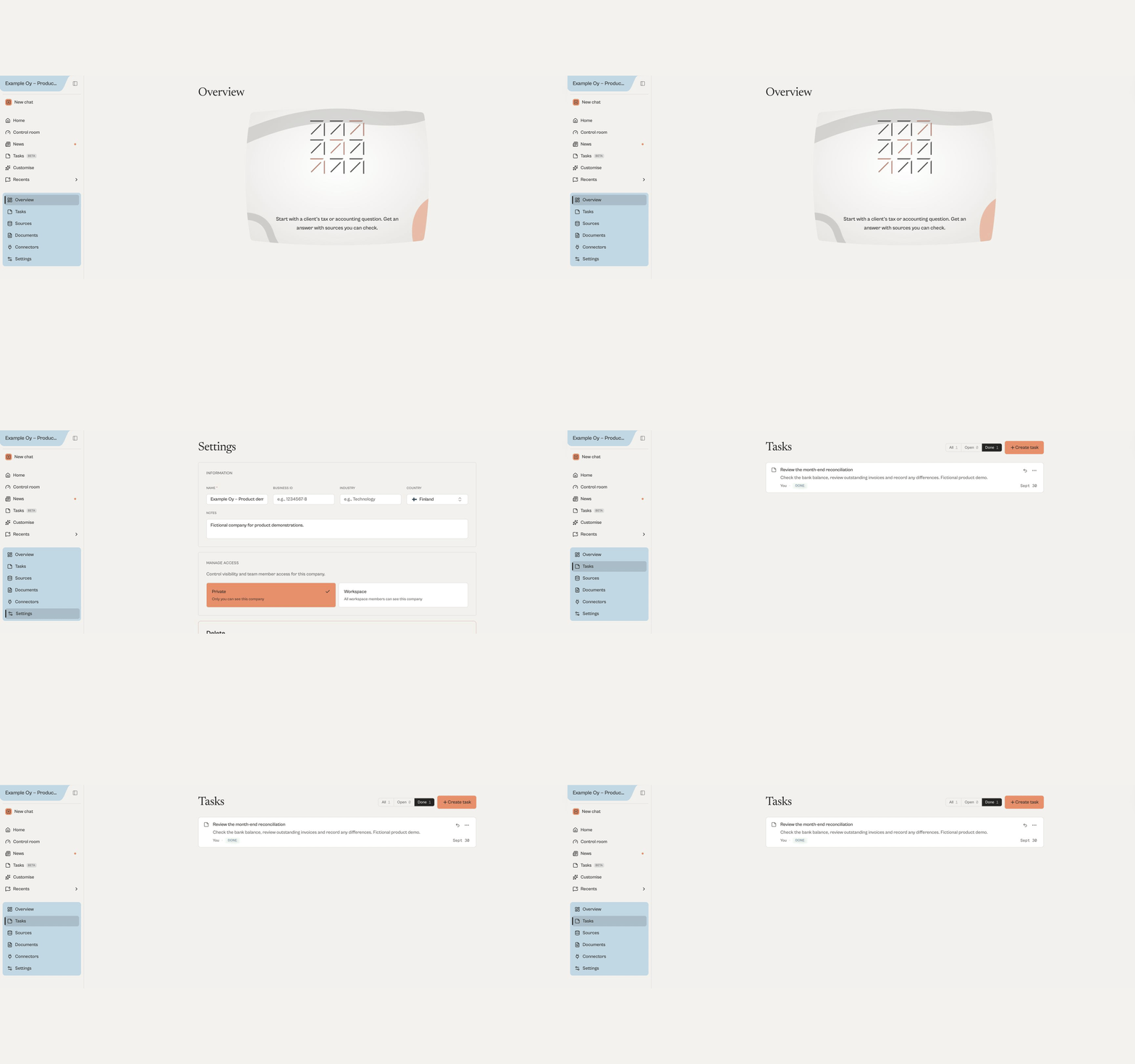
Create a company to keep its questions, tasks, sources and documents together. Each company has an overview where you can ask questions in its context, and settings for name, country, notes and visibility. Keep a company private or share it with your workspace.

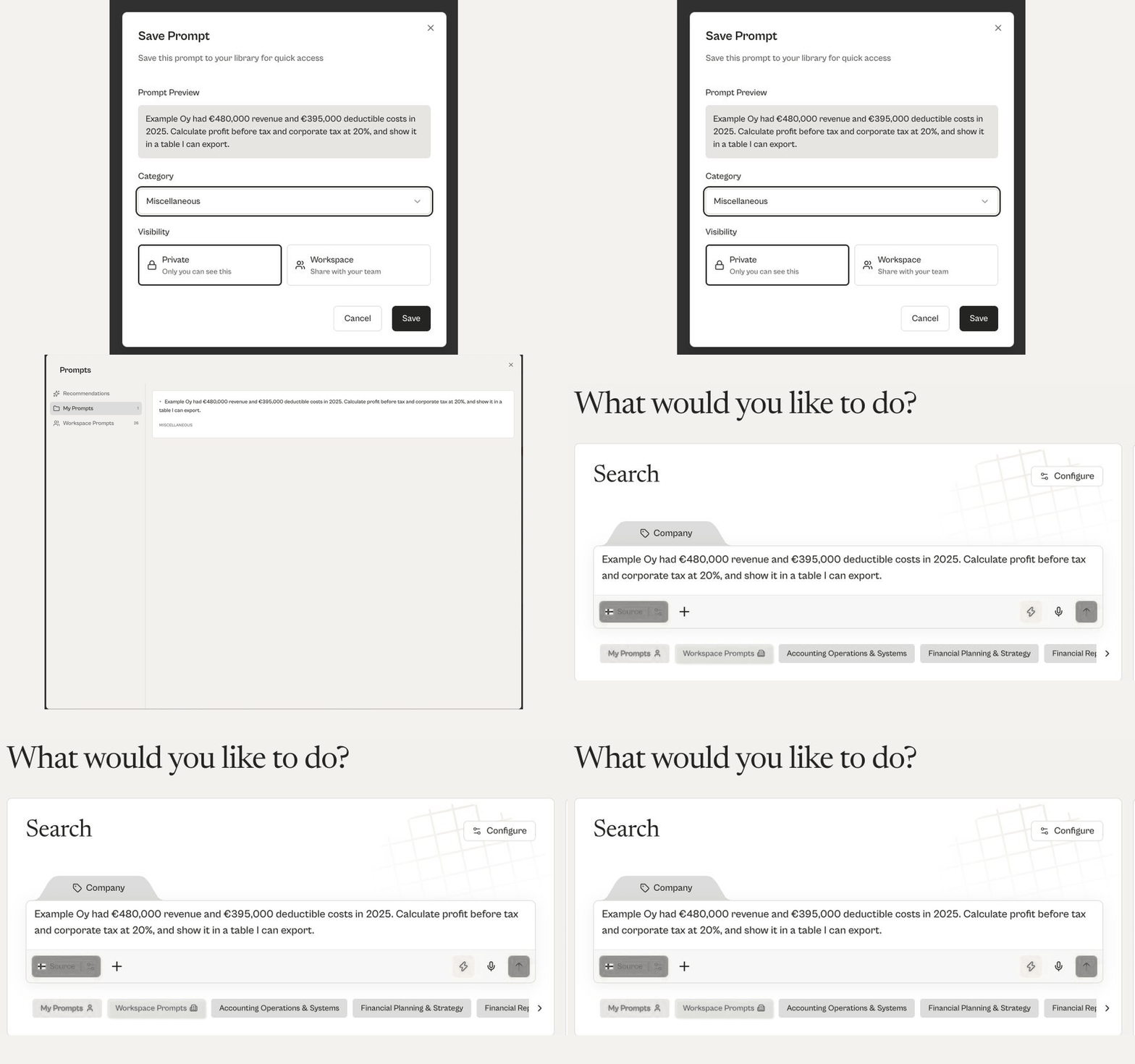
Save a question you have asked as a prompt and give it a category to keep it organised. Choose whether to keep it private or share it with your workspace. Your saved prompts appear in My Prompts, where one click adds a prompt to a new message.

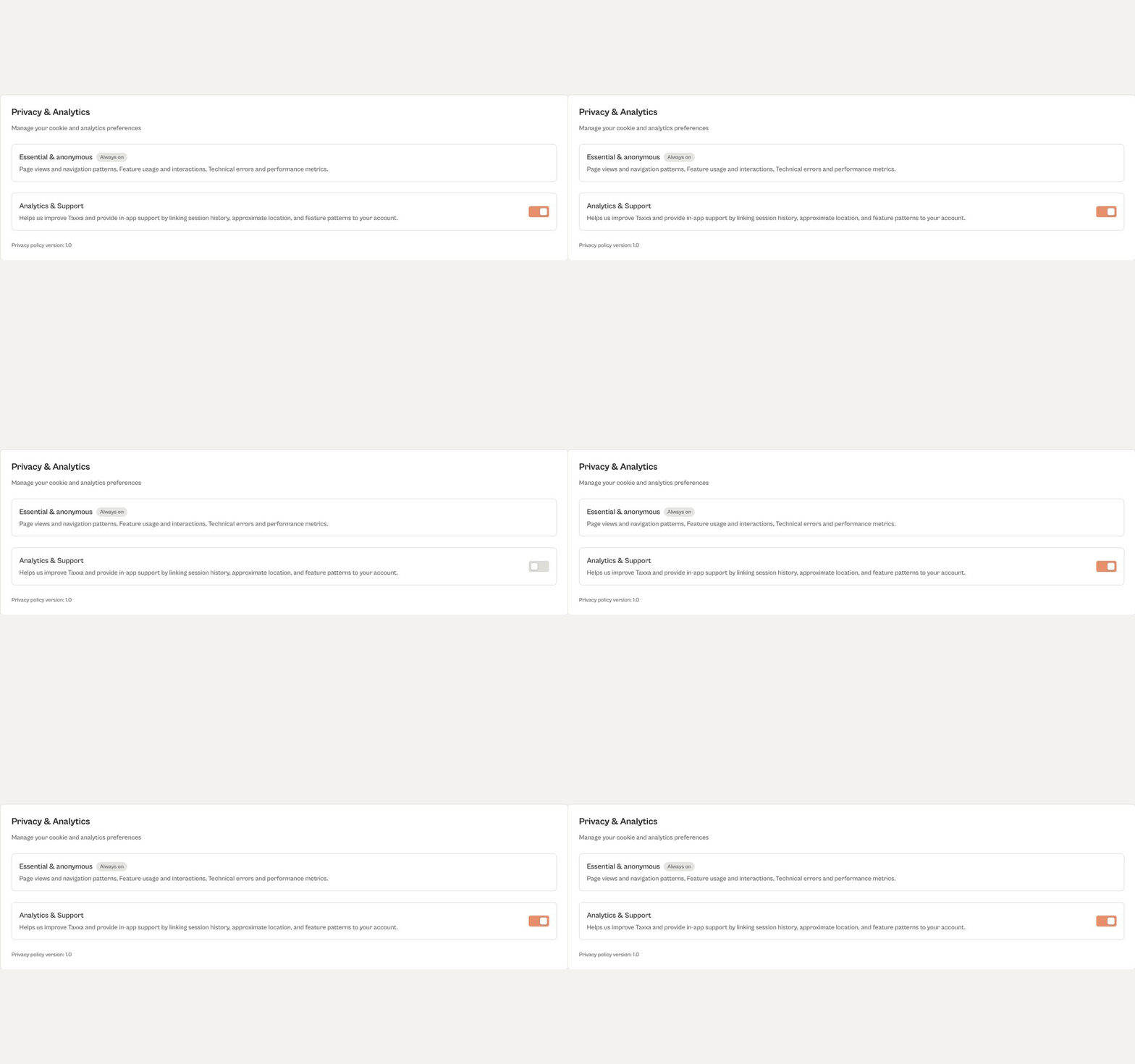
Your account settings now include a Privacy & Analytics card. Use the Analytics & Support toggle to turn optional analytics and support preferences on or off. The Essential & anonymous setting always stays on.

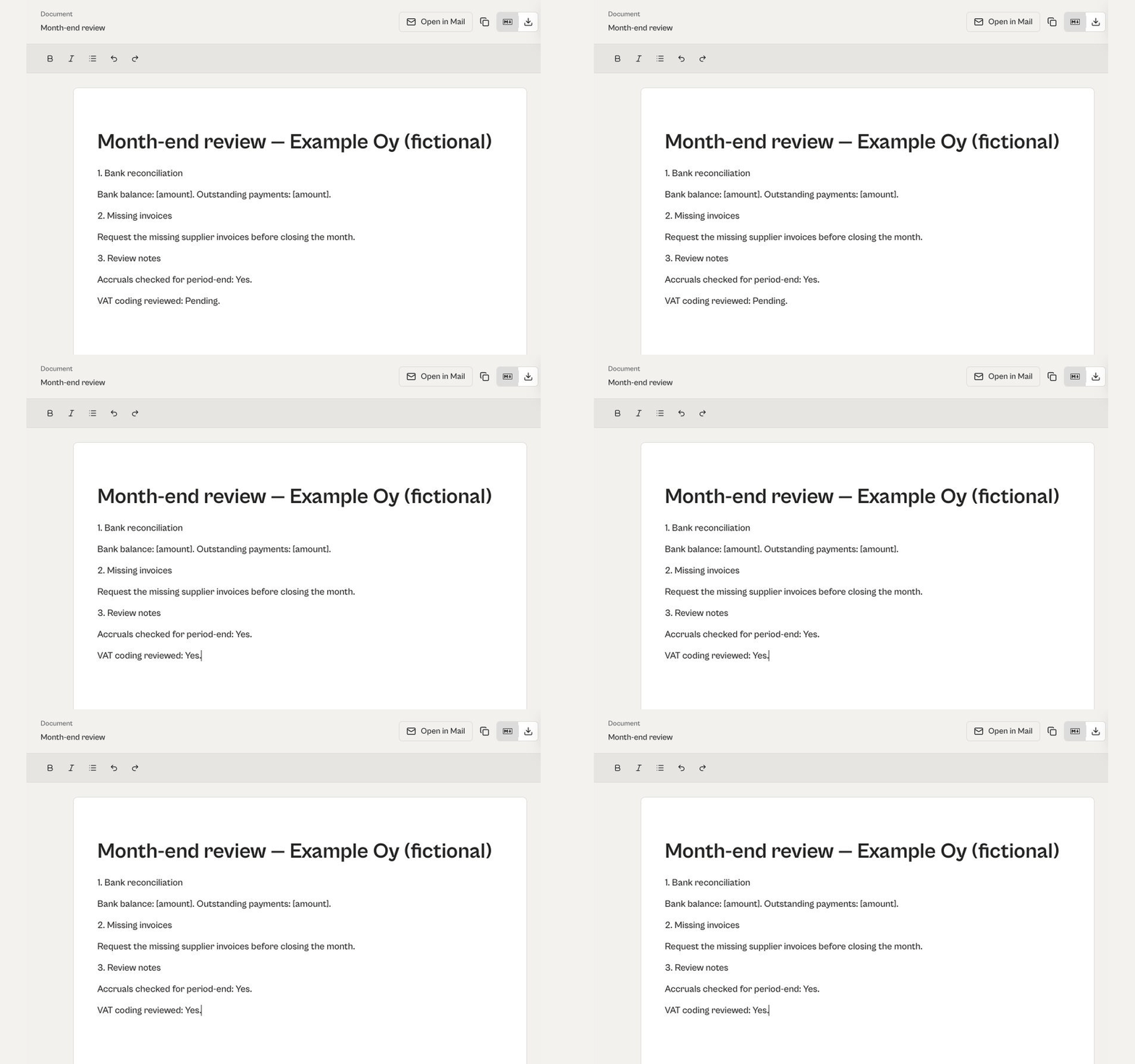
Open a generated draft, such as a month-end memo, in the document panel and edit it with the formatting tools. Change the text, update review notes and adjust headings. Your changes are saved as you work, so you do not need to save manually.

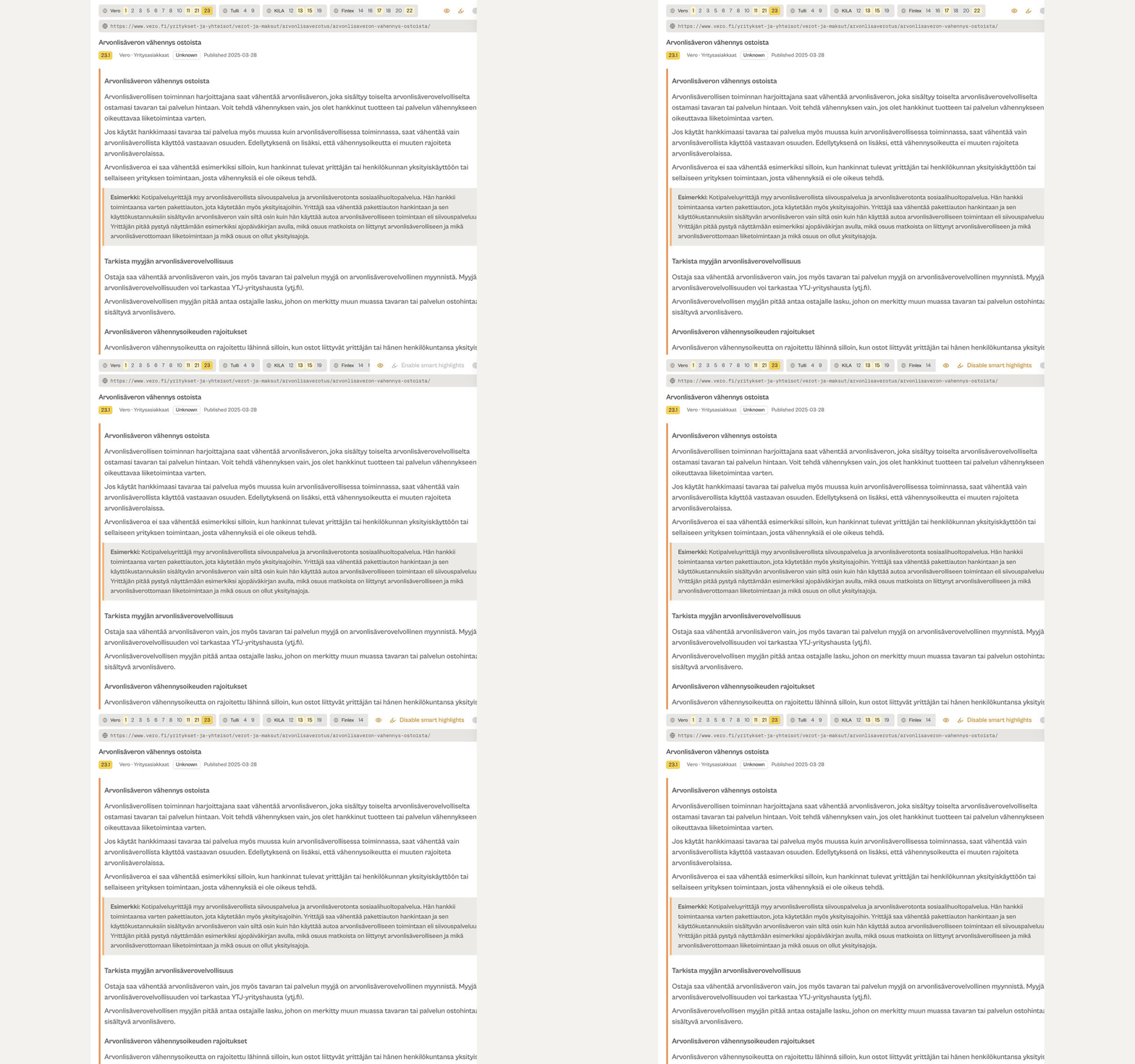
The source viewer now has a Smart Highlights toggle. Switch highlights off to read the source without emphasis, or switch them back on to see the highlighted passages. The source stays open alongside your answer.

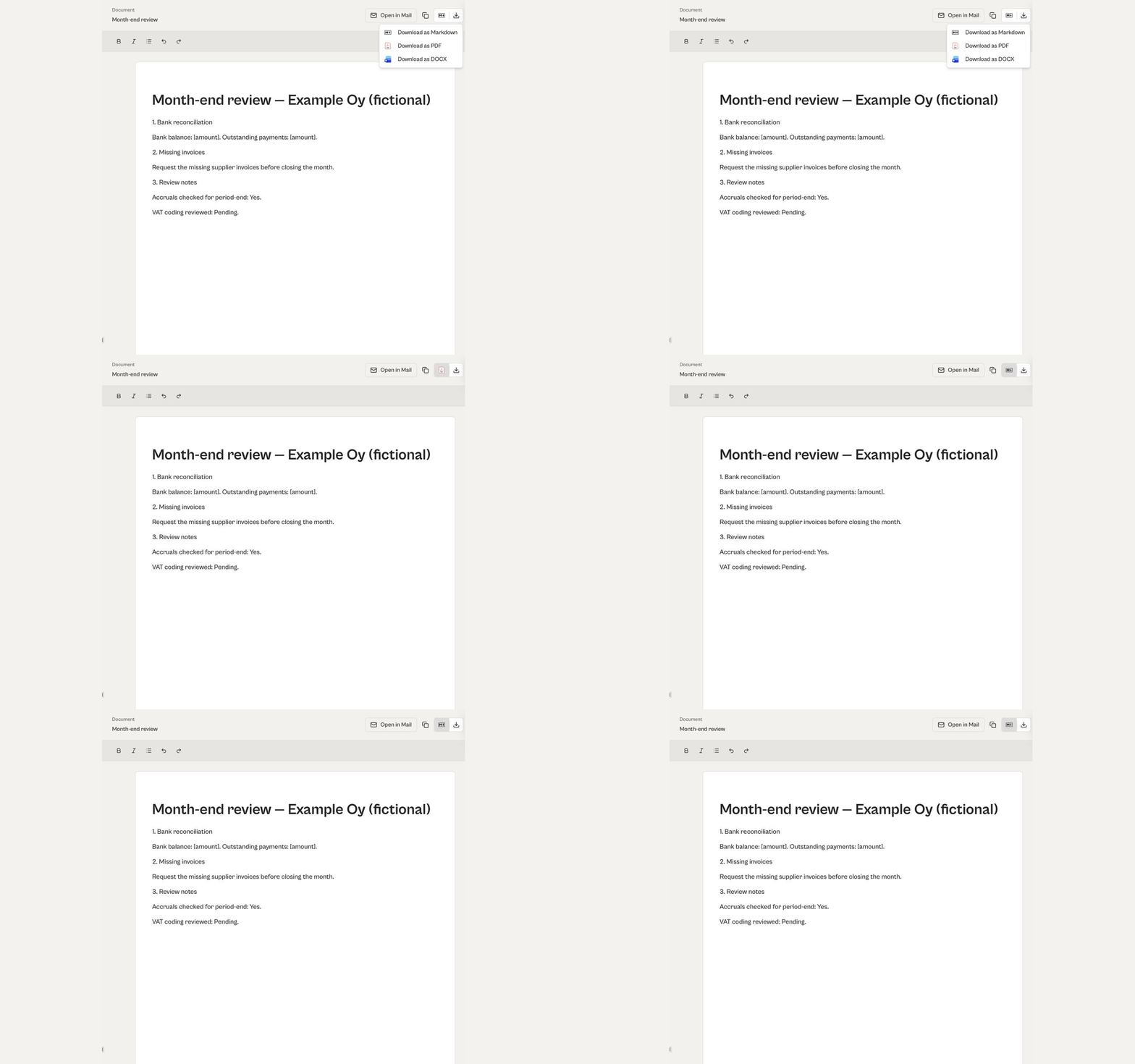
Take generated documents outside Taxxa. From the document panel, download a document as a PDF to share or file it, or as Markdown to reuse the text in other tools.

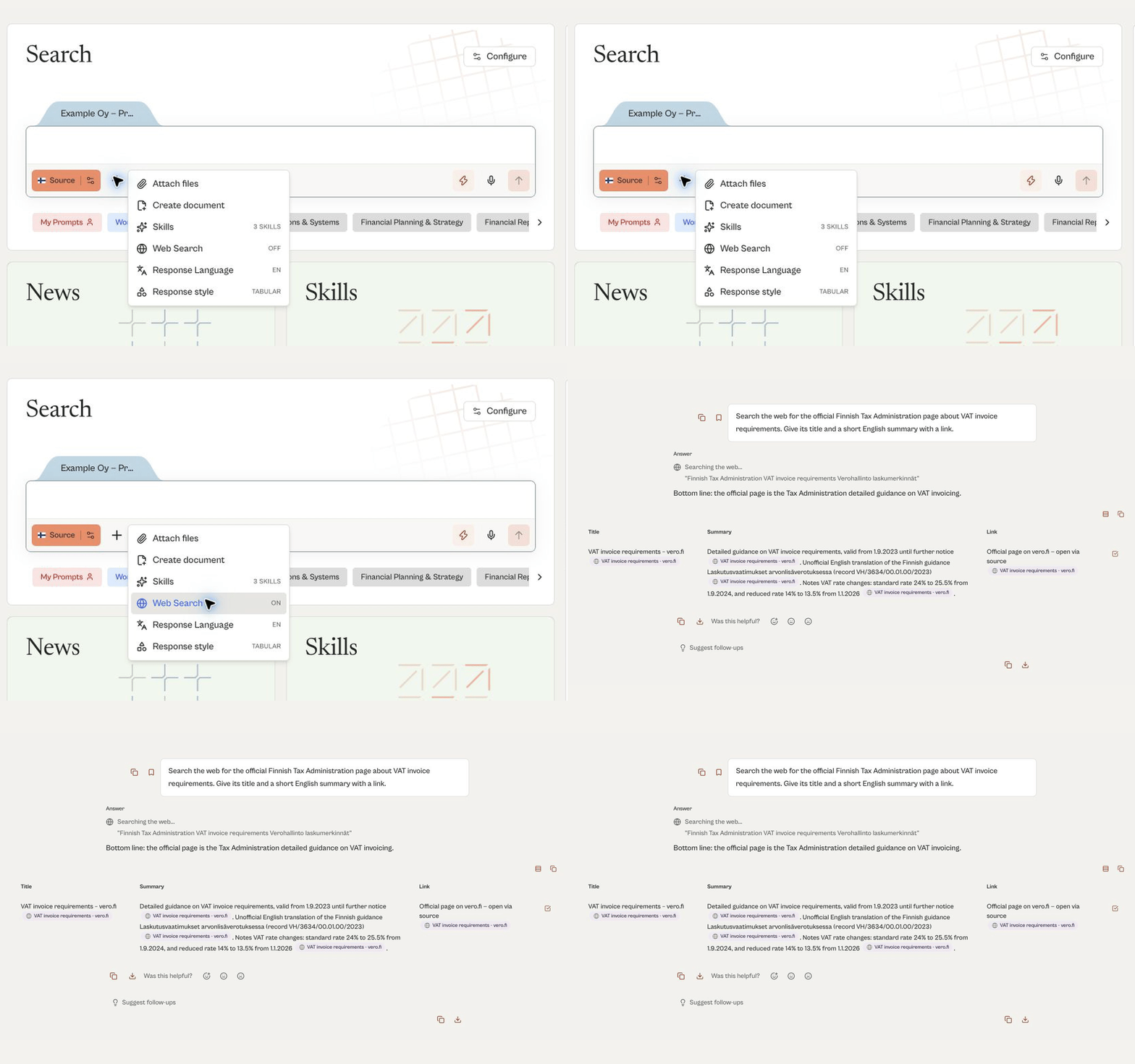
Turn on web search when you need current public information, such as official guidance from the Finnish Tax Administration. Taxxa searches the web, summarises what it finds and links to the sources. Open the linked source to check the details before you rely on them.

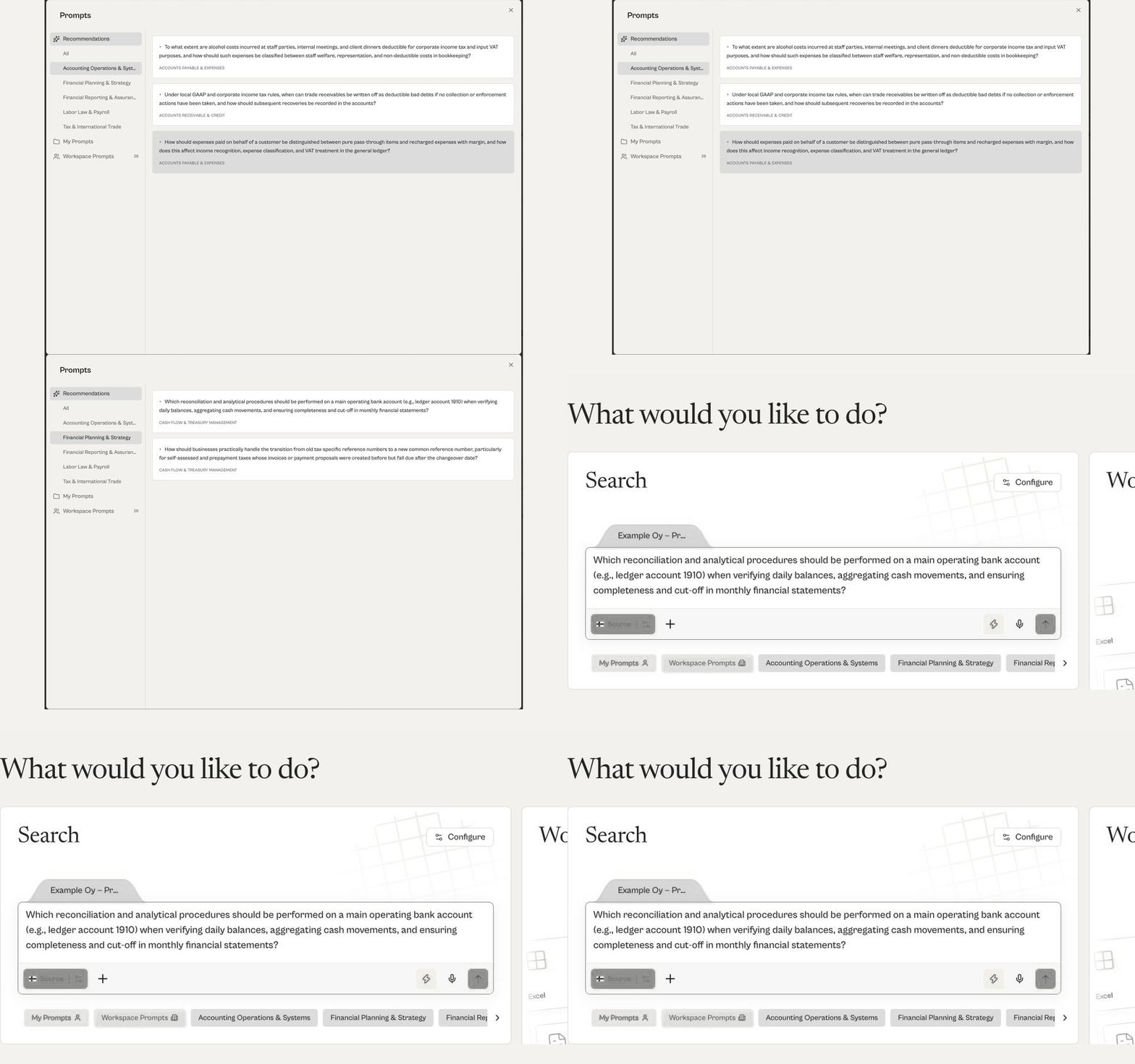
Taxxa now suggests questions to help you begin. Browse accounting categories, such as Financial Planning & Strategy, and pick a question, for example one about bank reconciliation. The question appears in the composer, so you can edit it before you send it.

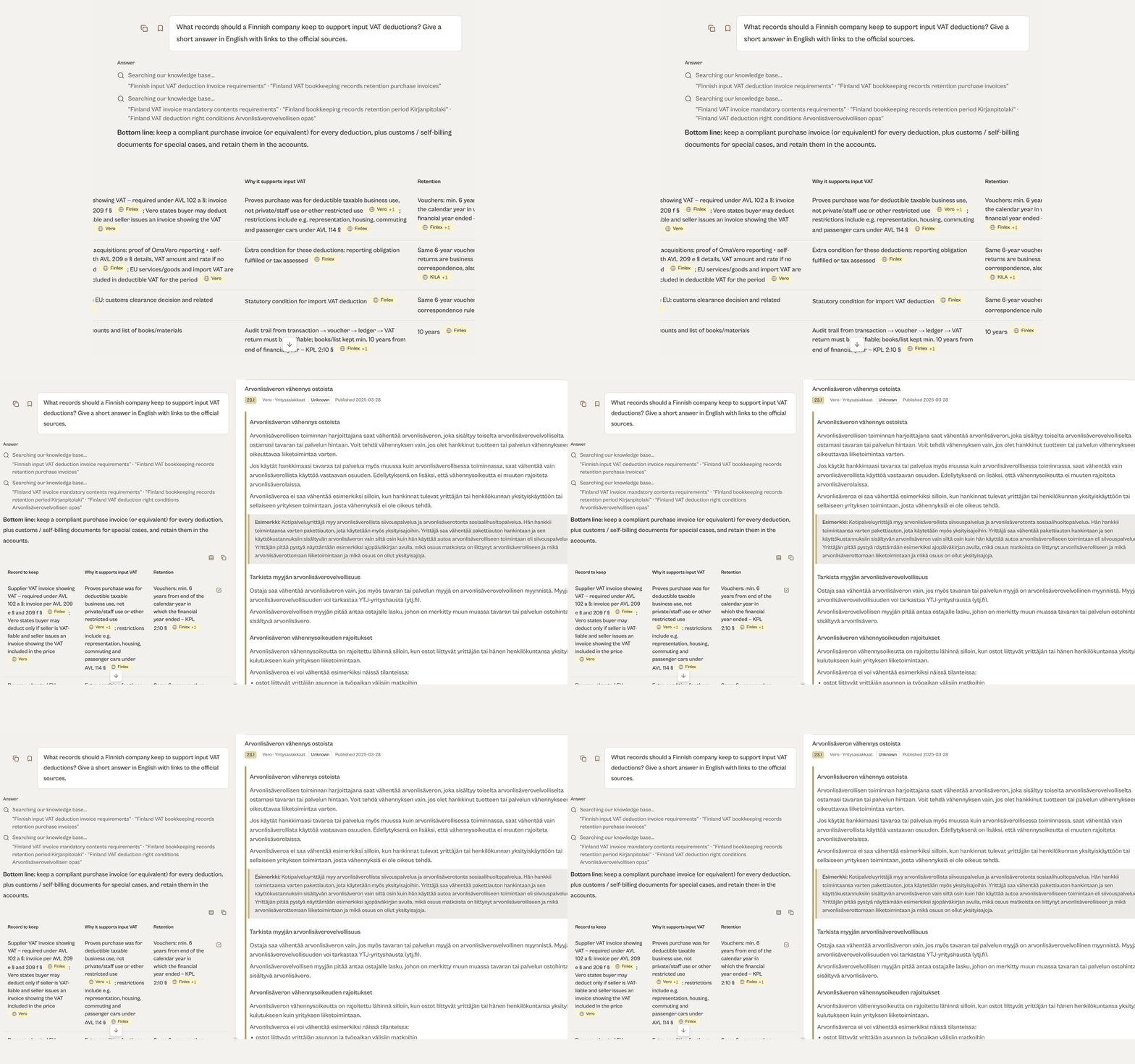
Answers include links to the sources they draw on. Open a reference, such as the Vero page behind a Finnish VAT answer, and read the original passage alongside the answer. This makes it easier to check the text yourself.

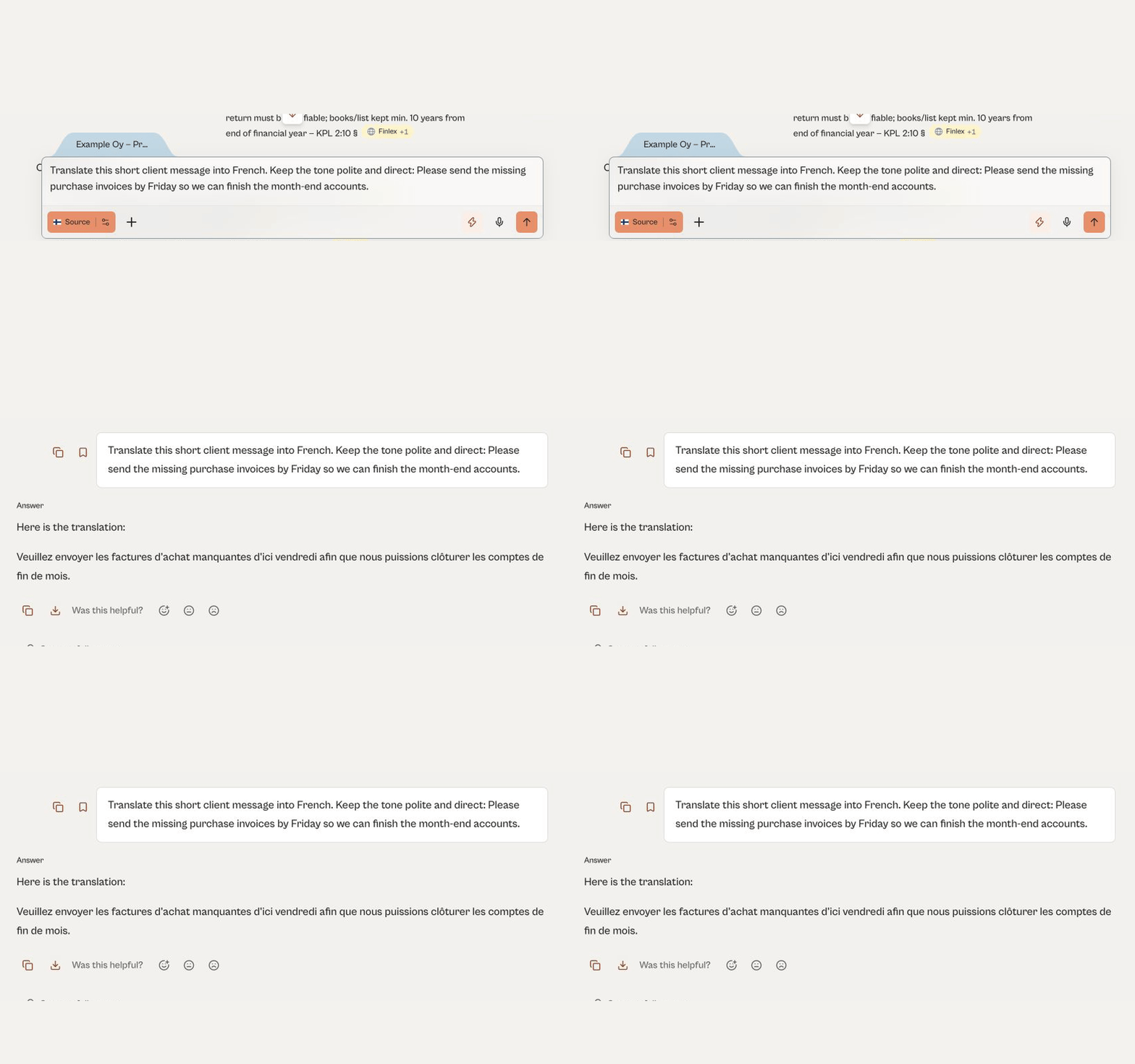
You can now ask Taxxa to translate short client messages, such as an invoice reminder from English to French. Say which language and tone you want. Review the translated text before you send it yourself.

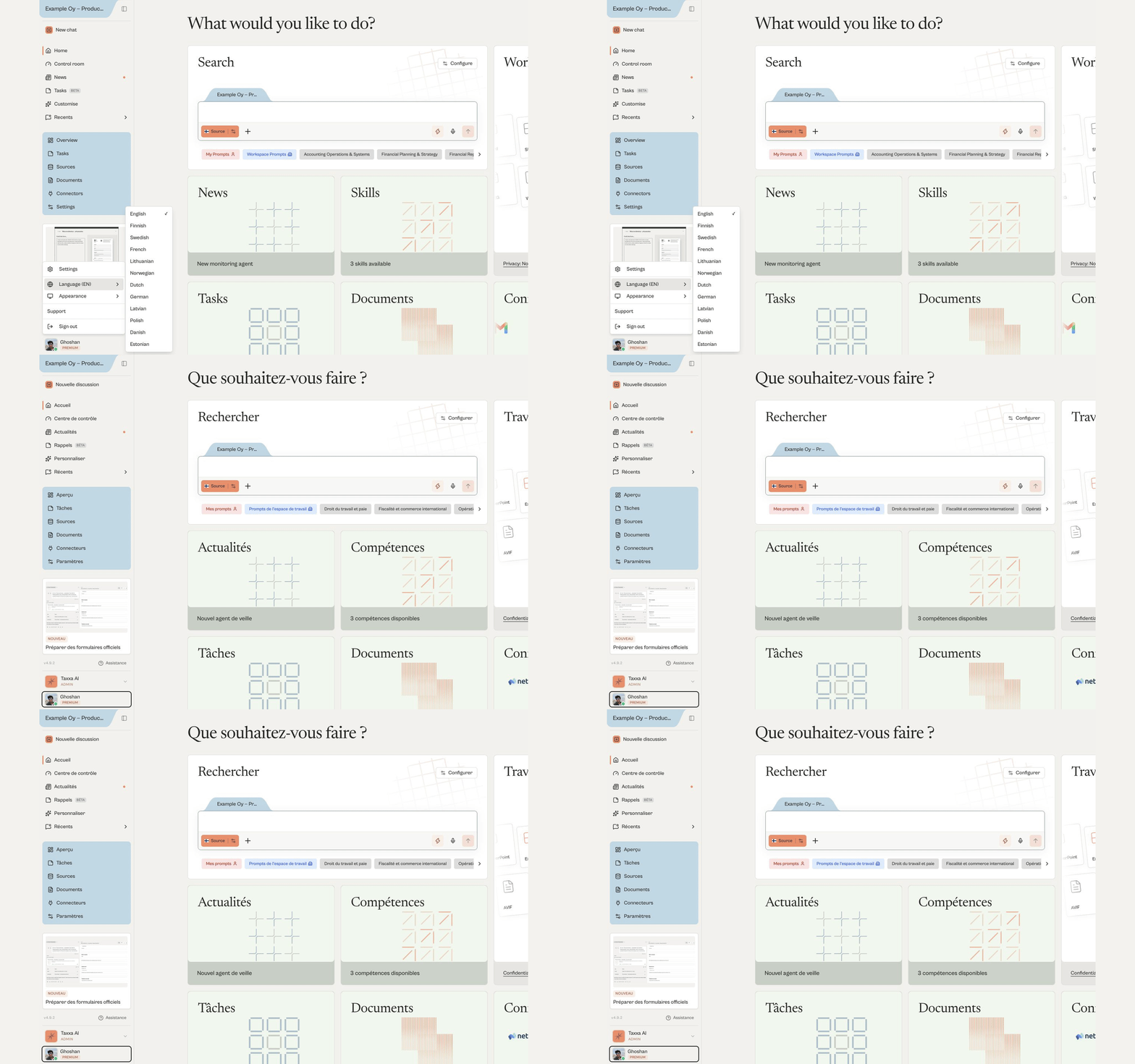
French and Norwegian have joined the supported interface languages. Open the language selector and choose one of them to use the Taxxa interface in that language.

You can now upload several files and ask about them together in one chat. For example, attach two monthly reports and ask Taxxa to compare sales, operating costs and operating profit. Each figure cites its source file, so you can check it.