
Accountants: Draft Legally Reviewed Client Documents in Minutes with Taxxa AI

Roman Fedorov
AI Consultant
Drafting client documents looks like routine work. Board meeting minutes, an employment contract, a shareholder agreement: you’ve done them many times before. But doing them by hand is slow. You dig a template out of your own library or off the internet, then go through it line by line, swapping in names, dates and figures, and hoping nothing from the last client slipped through.
The tedious part isn’t even the hardest part. Every client brings an edge case the template wasn’t built for: an employee who gets housing as part of their package, a pay level that has to follow a specific collective agreement, a non-compete clause, a share class with special rights. Each one needs the right wording under local laws, and it’s rarely obvious whether your version holds up. So you either spend an hour researching or you go with your best guess.
Those guesses rarely cause trouble the day you send the document. They surface months later, when the minutes are checked in an audit, a bank asks for them, or an employee disputes their contract, and by then they’re a much bigger problem.
Since we launched document creation in Taxxa, we haven’t written our board meeting minutes any other way. We upload the meeting transcript, add a few details, and attach supporting documents like our financial statements and company registers for context. Taxxa then builds a draft on a legally reviewed template.
This tutorial shows you how to do the same for your clients, step by step: https://youtu.be/Ro5ejaE39js
What you'll need
- A Taxxa.ai account. If you don't have one yet, book a demo and we'll get you set up.
- A client in Finland or Sweden. The templates are available for these two countries today, and more countries are coming soon.
Step 1: Open “Draft documents”
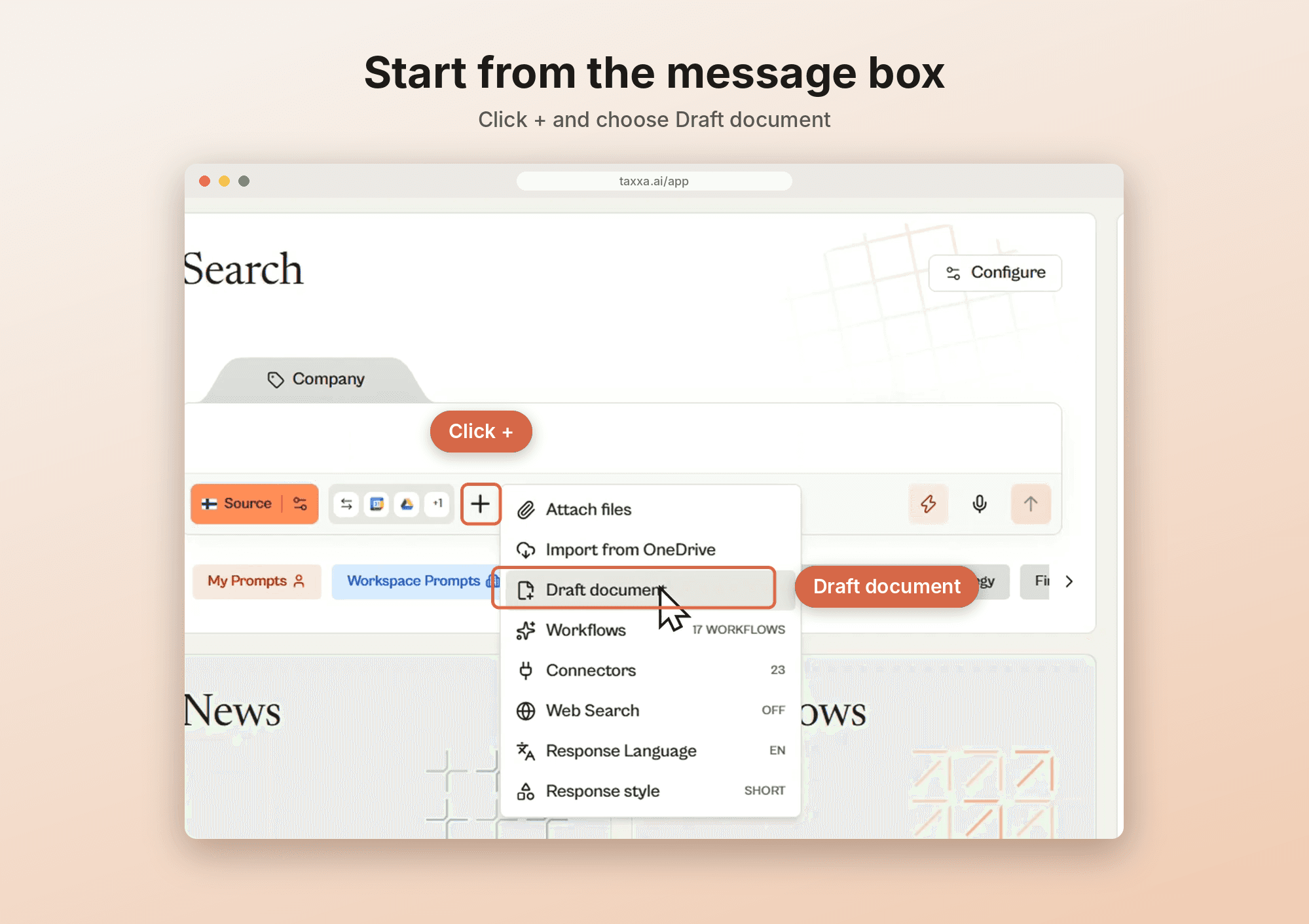
On the Taxxa home page, click the + in the message box and choose Draft document. Then go to Templates.
Step 2: Pick a template
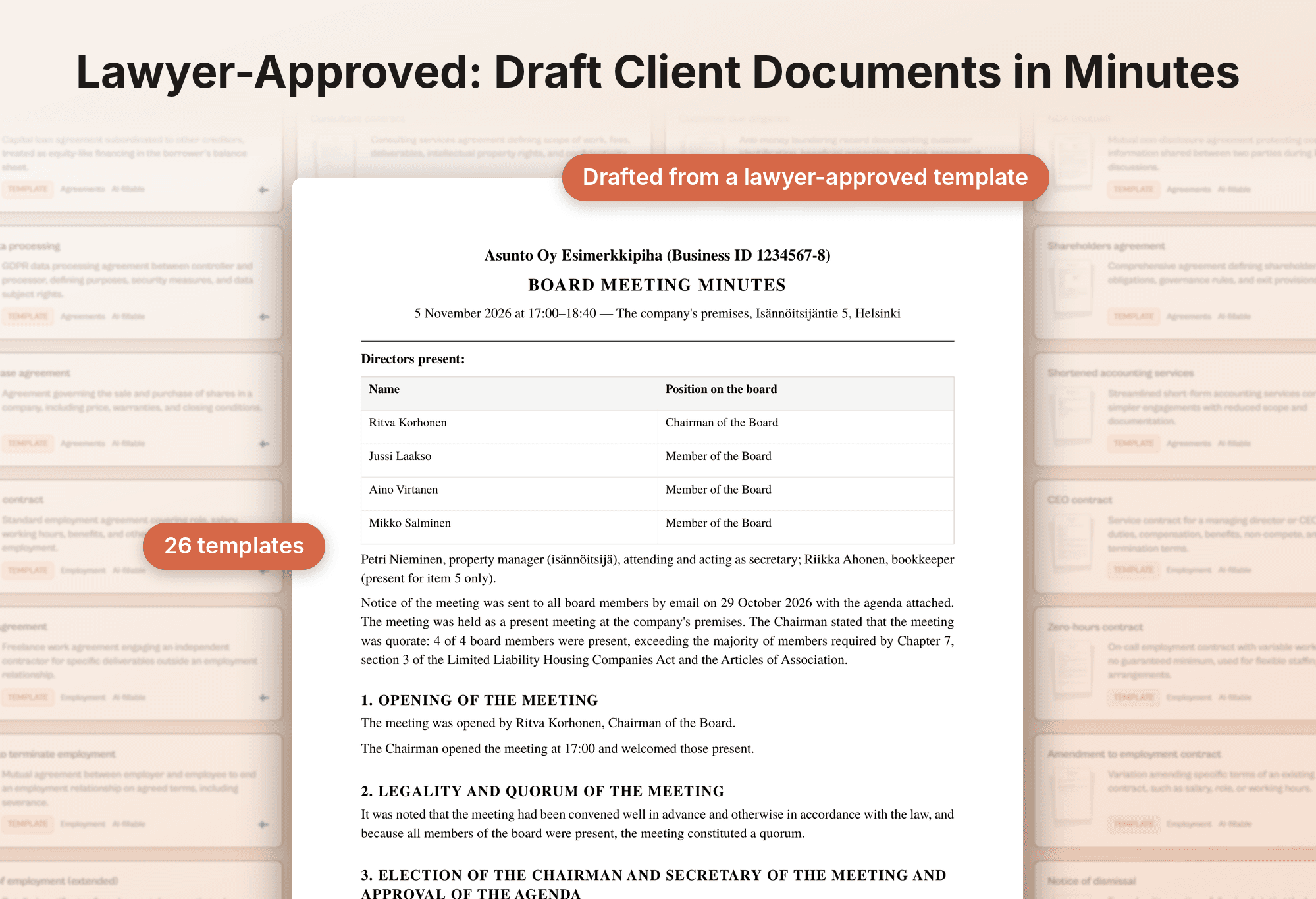
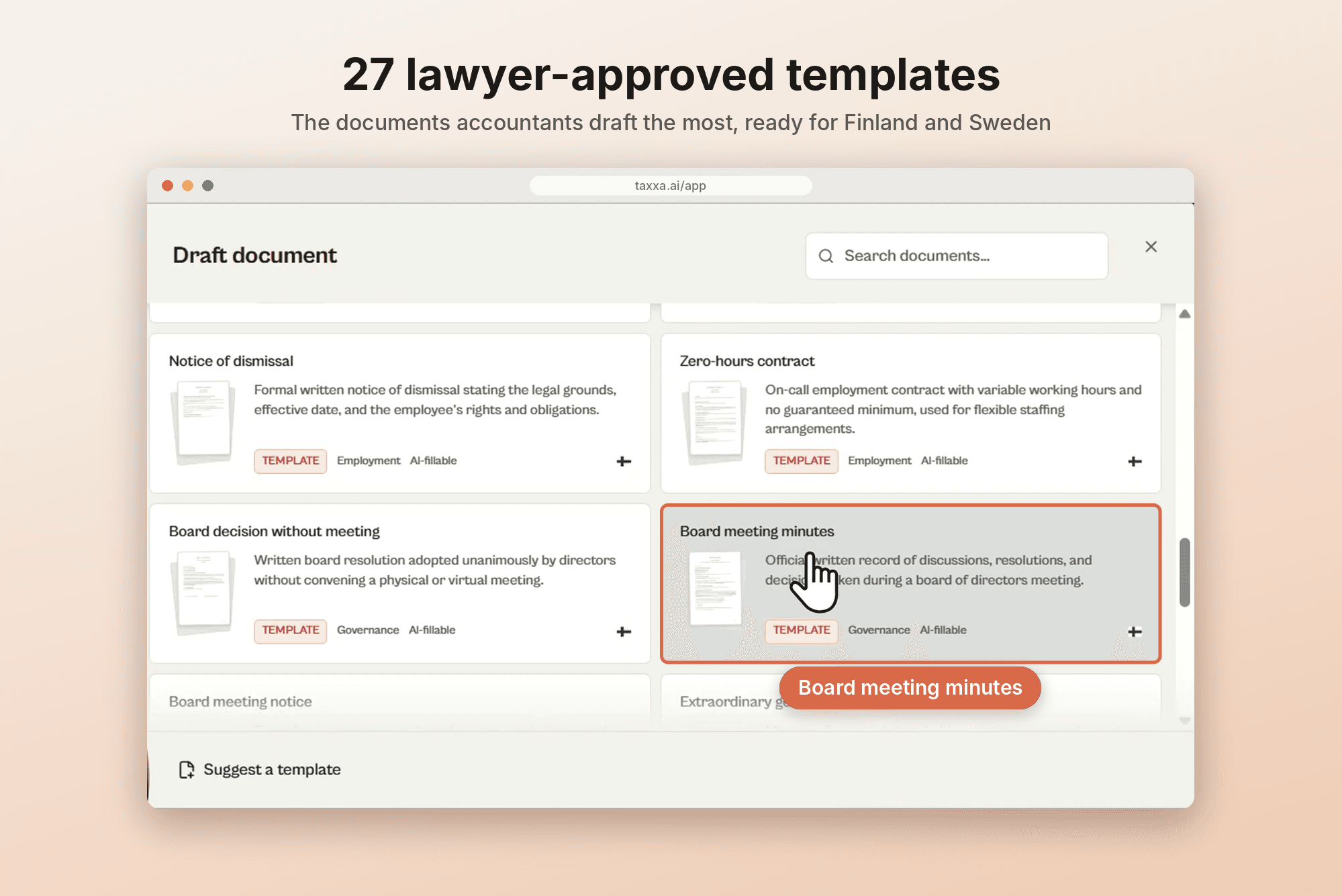
We've shortlisted the 26 documents accountants draft the most, like capital loans, NDAs, employment contracts, shareholder agreements, board meeting minutes and shareholder registers.
These aren't AI-generated templates. Every one was reviewed and approved by a local corporate lawyer, so they’re ready for business use.
The templates are written in Finnish for the Finnish market and in Swedish for the Swedish market. You can also draft in English, which is what we’re showing here.
Today we need board meeting minutes, so click Board meeting minutes.
Step 3: Add details (optional) and start drafting
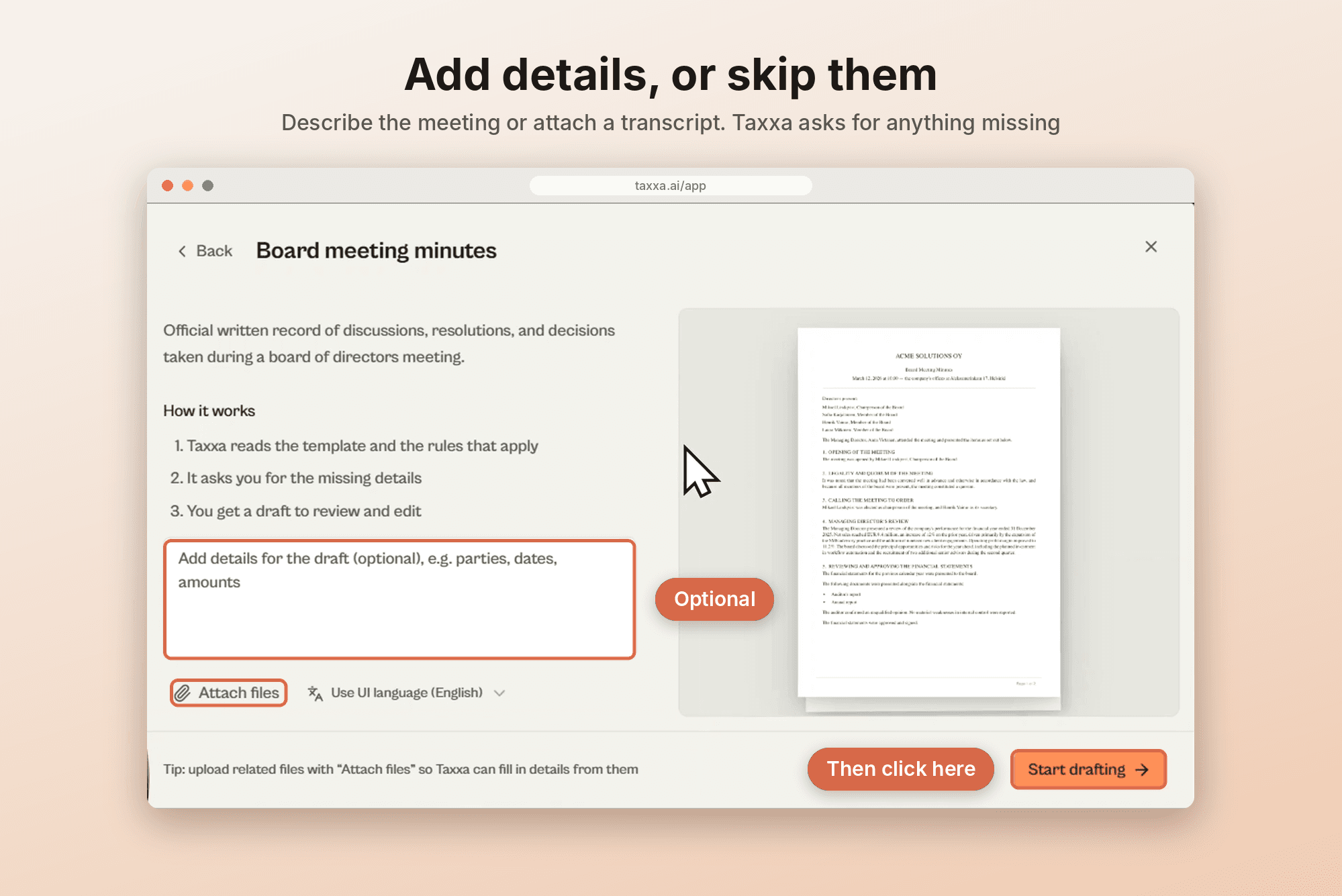
Taxxa asks for details. You can write a short description of what was discussed during the board meeting, or click Attach files to add the meeting transcript and any other relevant documents. This step is optional, and you'll see why in a moment.
Click Start drafting.
Step 4: Answer Taxxa's questions
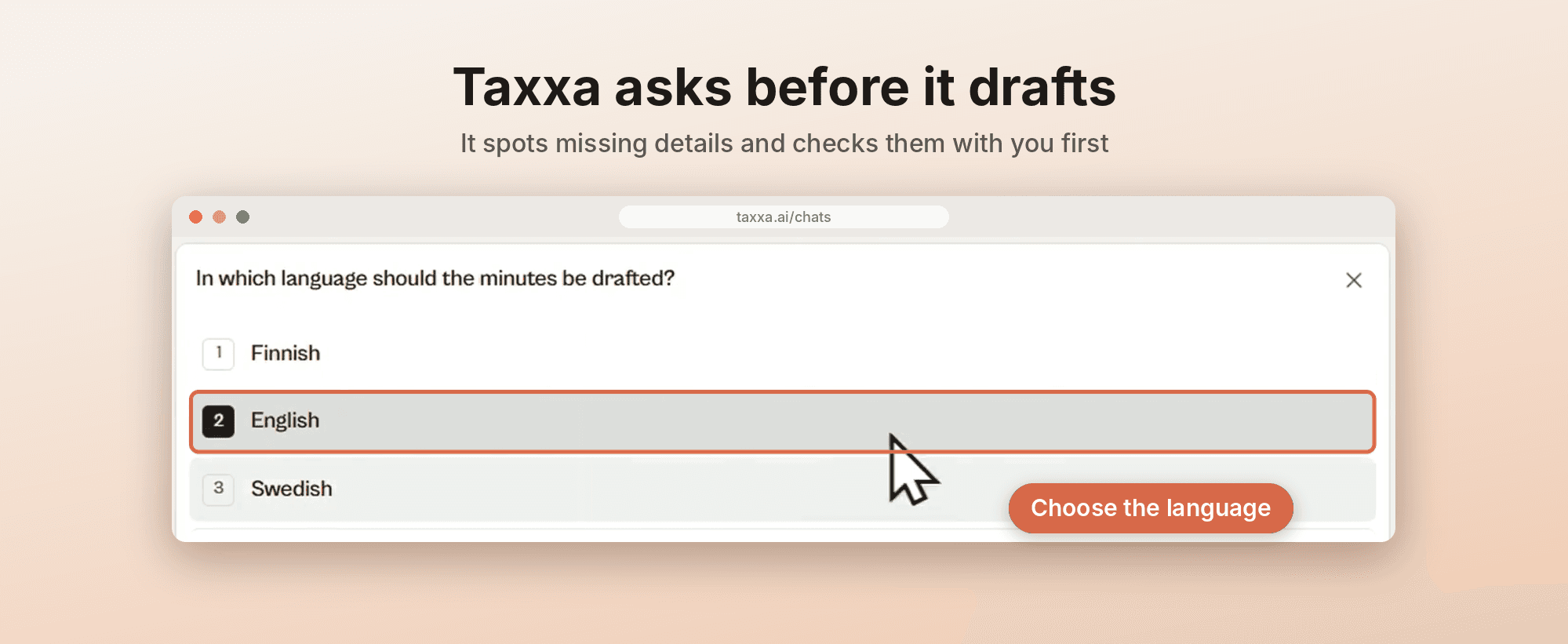
Before it drafts anything, Taxxa checks what's missing and asks you for it. In our case, it asked six questions, including the company's registered name, who attended and which language the minutes should be in. That's why the details step is optional: nothing gets left blank.
Answer each question, pick the language (Finnish, English or Swedish) and click Submit.
Step 5: Read the draft
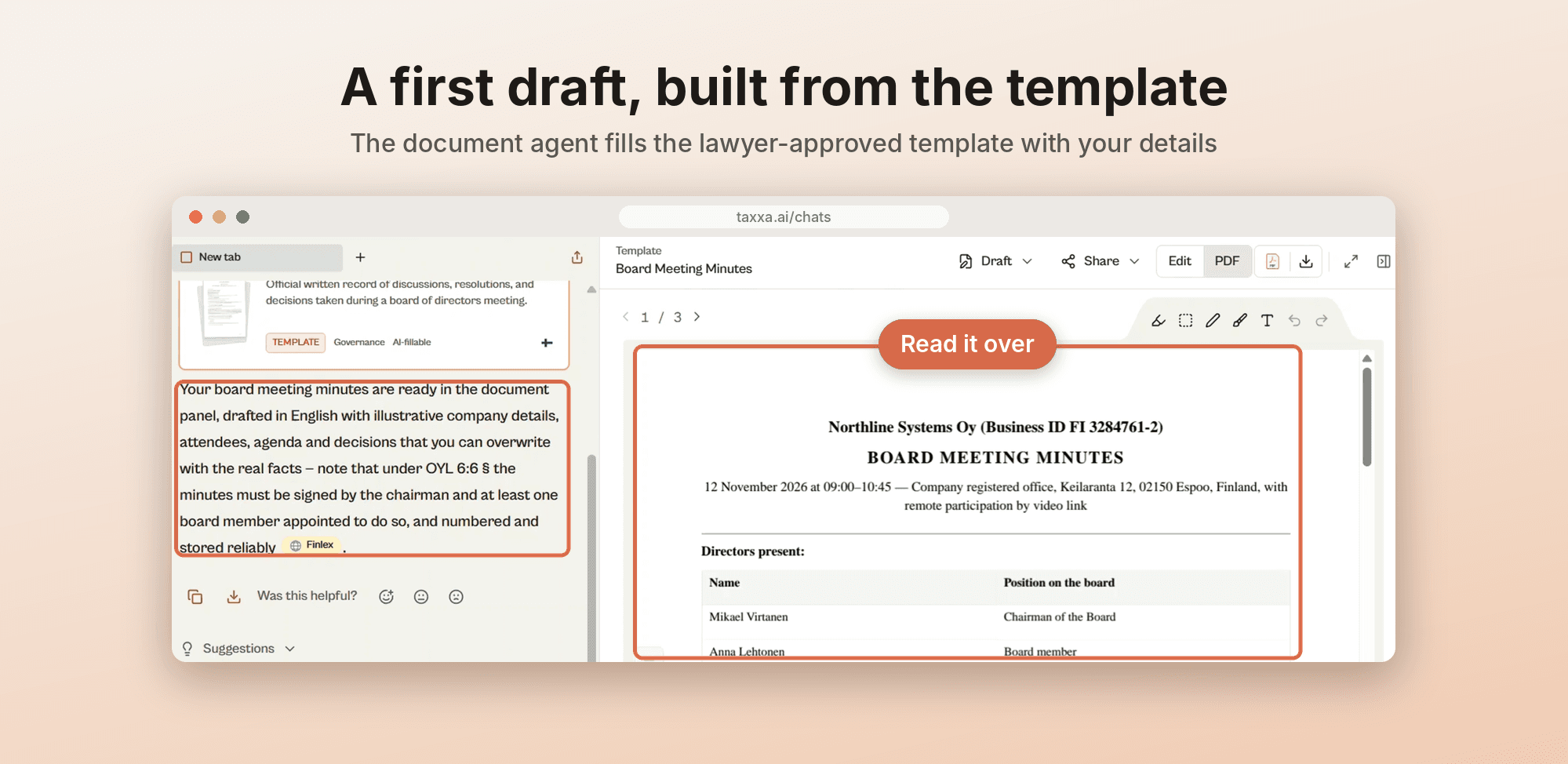
Each template has its own dedicated AI agent, whose only job is to draft from that template.
The draft opens in the document panel. Read it over and make sure everything is correct.
Step 6: Fix mistakes, your way
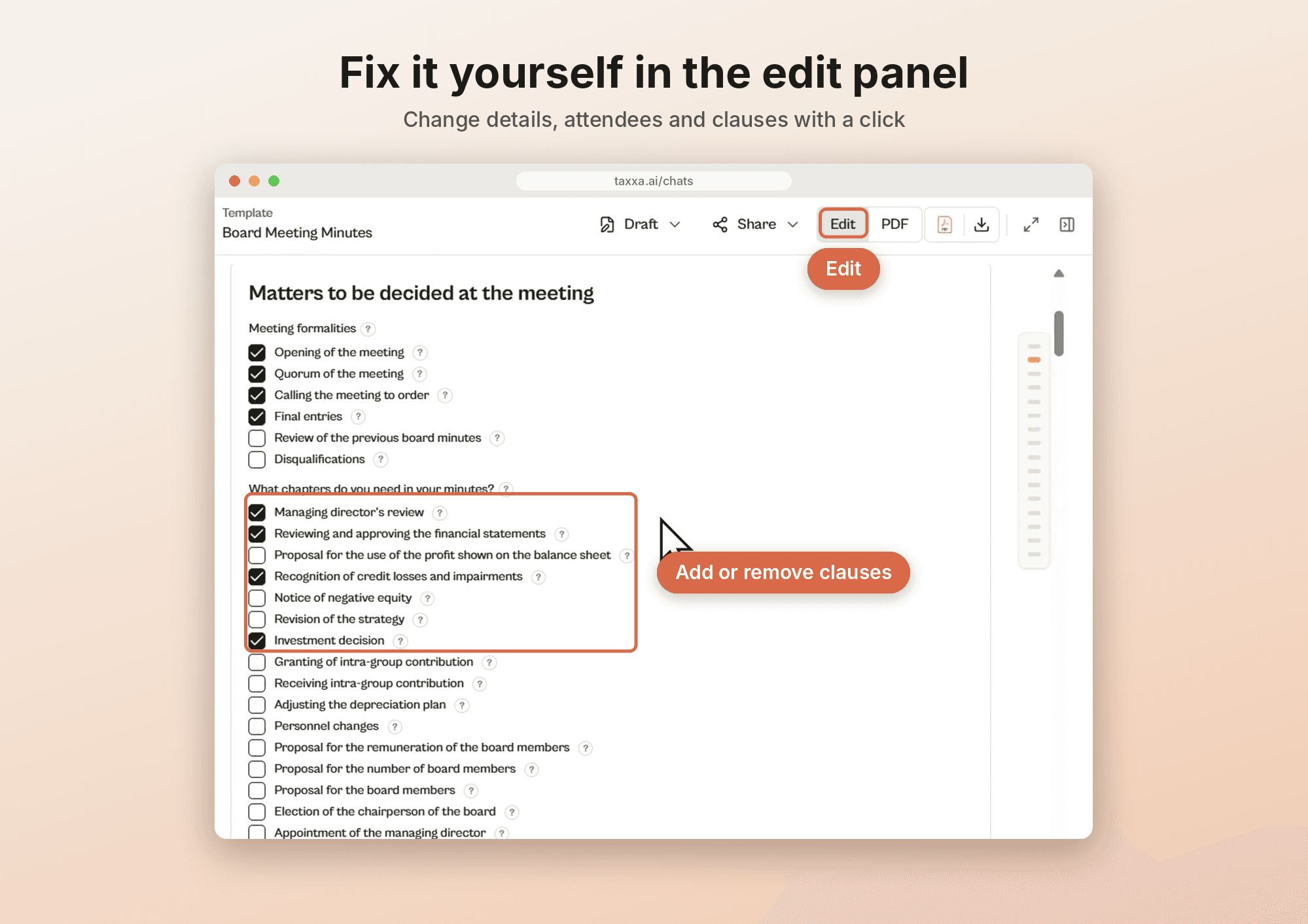
Spotted something wrong? There are two ways to fix it.
Edit it directly. Click Edit to open the edit panel. You can change details, add or remove attendees, and add or remove clauses with a click.
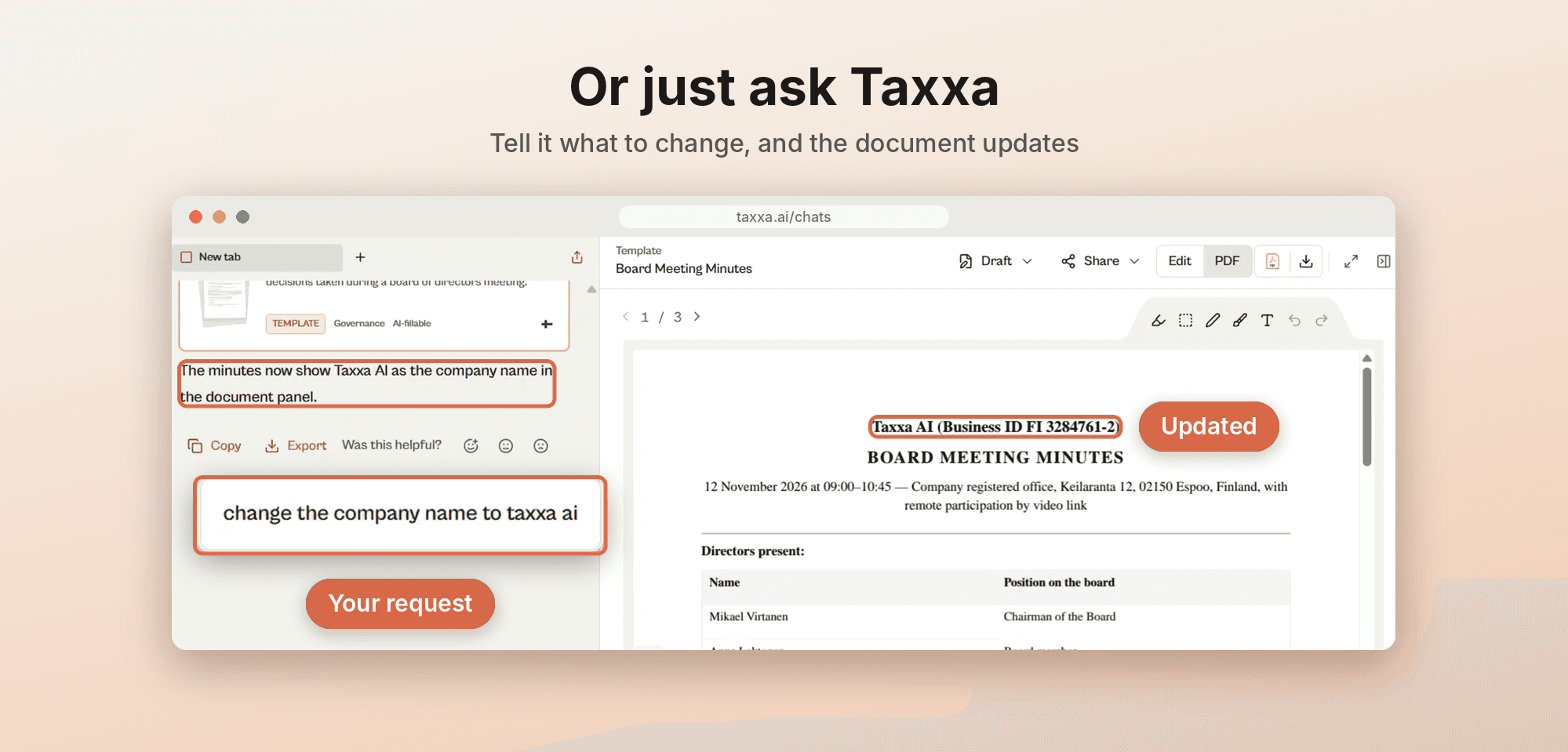
Or just ask Taxxa. Tell it what to change in the chat. We typed:
"Change the company name to Taxxa AI."
Taxxa updates the document, and it's done.
Step 7: Publish and invite your client
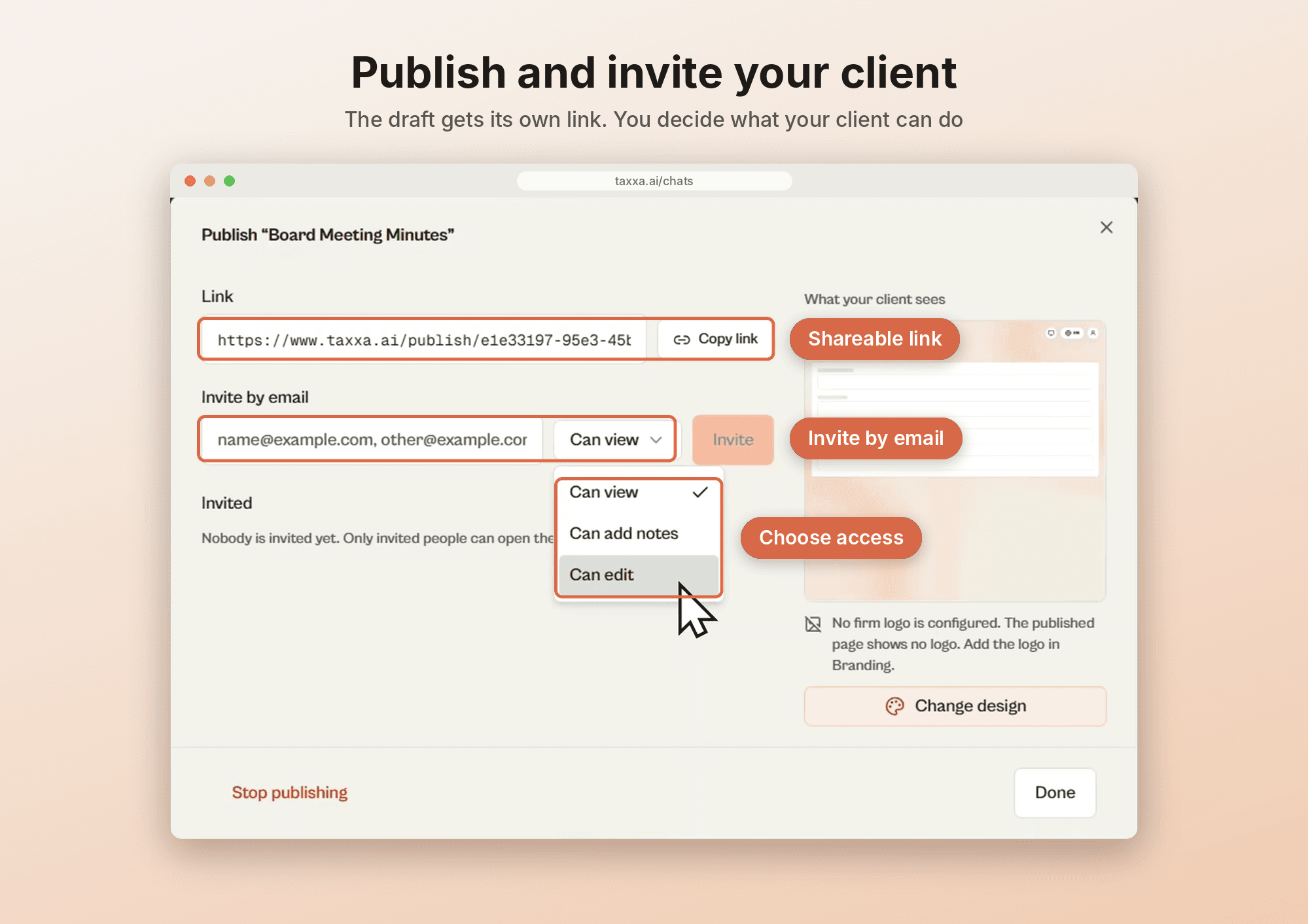
Your client usually needs to review a document before it's submitted. Click Share, then Publish. The draft gets its own link.
Invite your client by email and choose what they can do: Can view, Can add notes or Can edit. Each person you invite gets an email link and opens the page with a one-time code sent to their address.
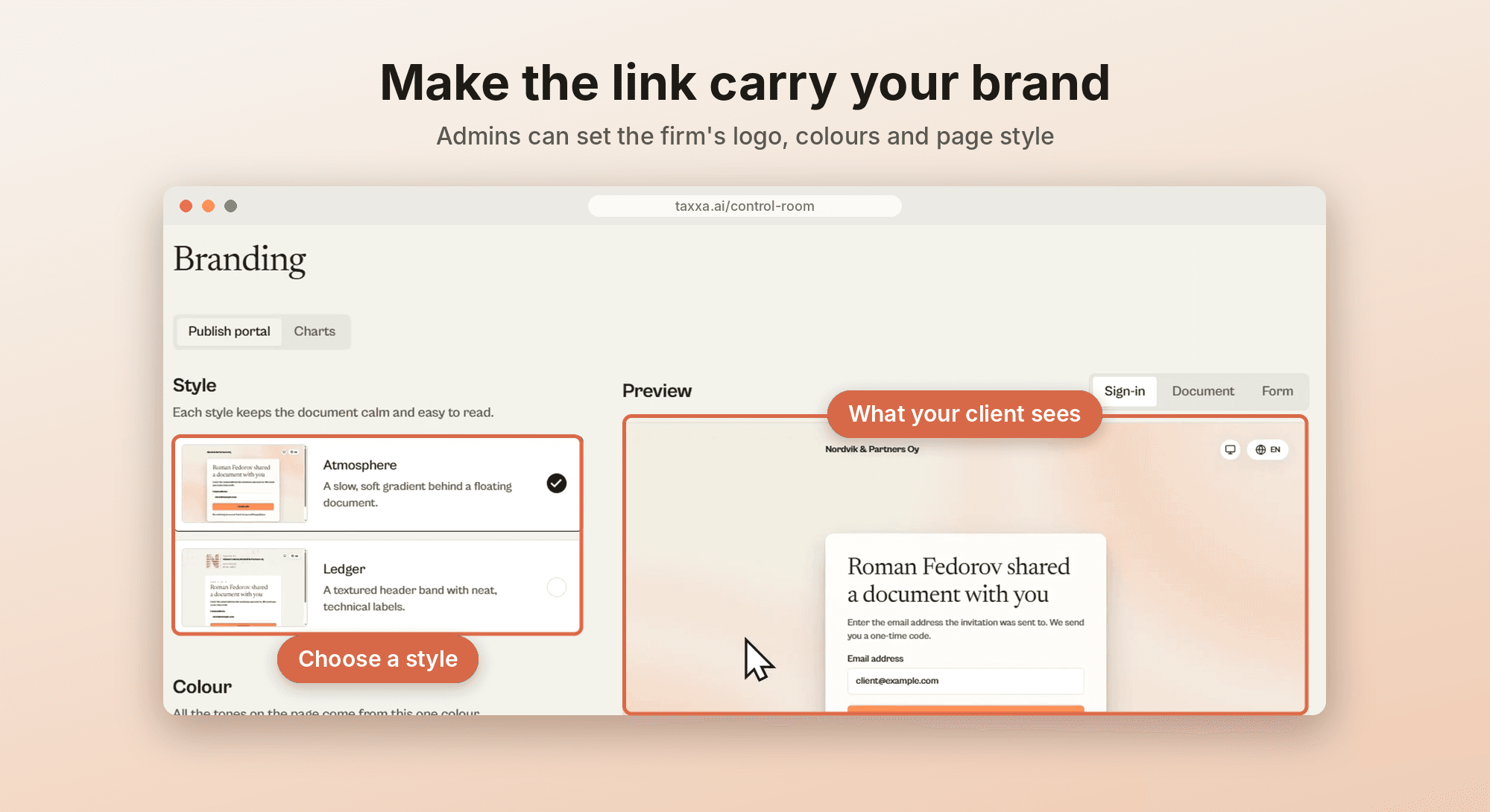
Pro tip: If you're an admin, you can add your firm's logo and colours under Branding, so the link carries your brand.
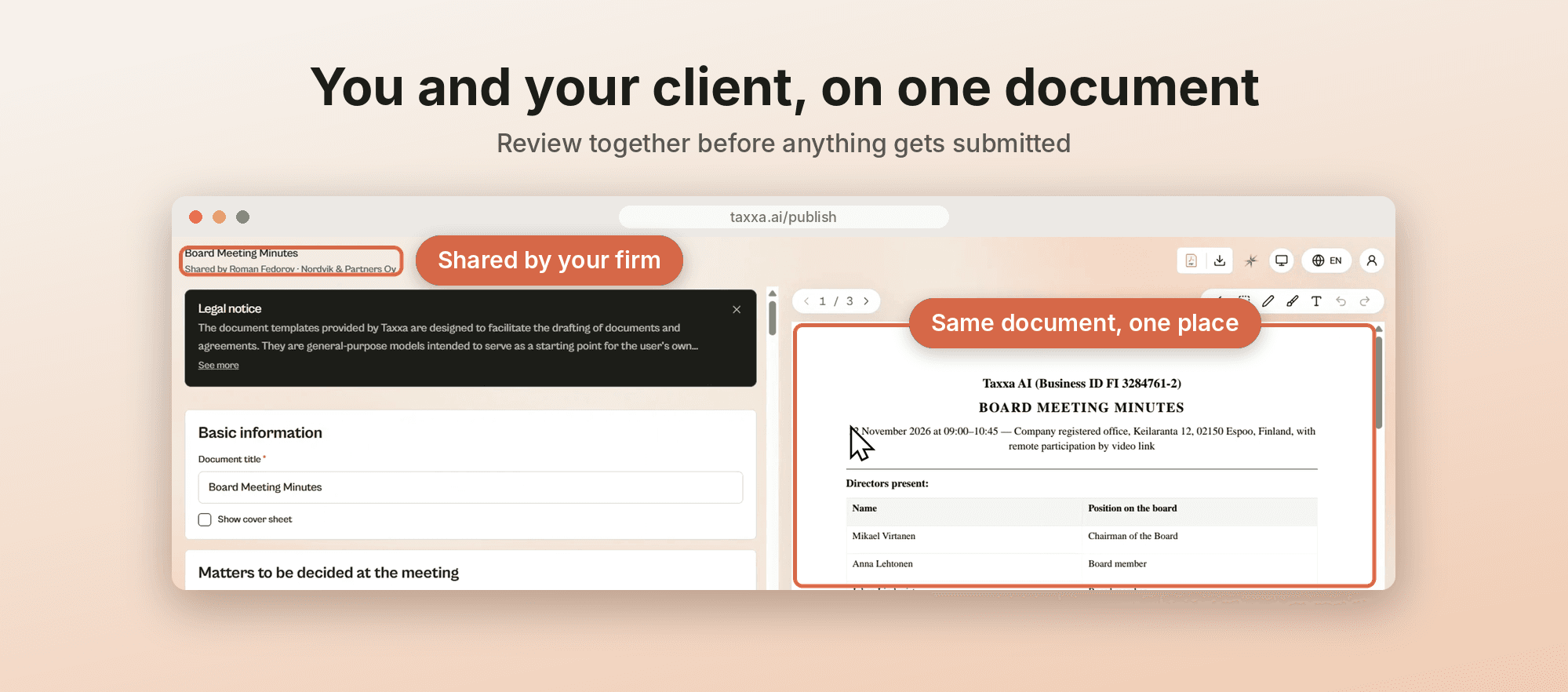
Step 8: Work on it together
Now you and your client work on the same document, in one place, before anything gets submitted. No more sending versions back and forth by email.
And that's the whole workflow. No hunting for a template, no rewriting the same document by hand, and no guessing whether it will hold up.
Other templates to try
Once you've drafted your first document, try the same flow with:
- Capital loan agreements: attach the loan terms and let Taxxa fill in the parties and amounts.
- NDAs: describe the two parties and what's being shared.
- Employment contracts: add the role, salary and start date.
- Shareholder registers: attach the current ownership list.
Why this matters for accounting teams
Client documents carry real risk. A clause copied from a random template, or a missing detail in the minutes, can cause problems long after the document is signed. Starting from a lawyer-approved template removes that risk, and the time saved adds up across every client you work with.
A shared link isn't the only way to get the draft to your client, either. If they'd rather receive it by email, Taxxa can send it from your own Gmail or Outlook account. To connect your email, follow Step 2 in our guide to sending overdue invoice reminders with Taxxa.
E-signing is coming very soon. Then you'll be able to create, edit, share and send documents for signature, all inside Taxxa platform.
Try it yourself
This is one of many workflows we've built for accounting professionals across Europe. Book a demo to see it running on your own clients.