Get Paid Faster: Send Overdue Invoice Reminders in Any Language in Taxxa

Luis López
COO
Chasing overdue invoices is one of those tasks every finance team knows it should do consistently, and almost nobody enjoys. It usually means exporting a receivables report, cross-checking due dates, opening your email client and writing each reminder by hand. Invoice across borders, and there’s one more decision: write in English, or in each customer’s own language?
We recently ran the whole process for our own company in a few minutes. Taxxa pulled every overdue sales invoice from Netvisor, drafted a friendly reminder for each customer in their language and sent them, all from one place. This tutorial shows you how to do the same.
What you’ll need
Before you start, make sure you have:
- A Taxxa.ai account. If you don’t have one yet, book a demo and we’ll get you set up.
- A connected accounting system. In this example we use Netvisor by Visma, the same accounting tool we use at Taxxa.
- A connected email account. Gmail, Outlook and Microsoft 365 are all supported, so reminders go out from your own address and land in your Sent folder as usual.
Step 1: Create a client profile and connect its accounting system
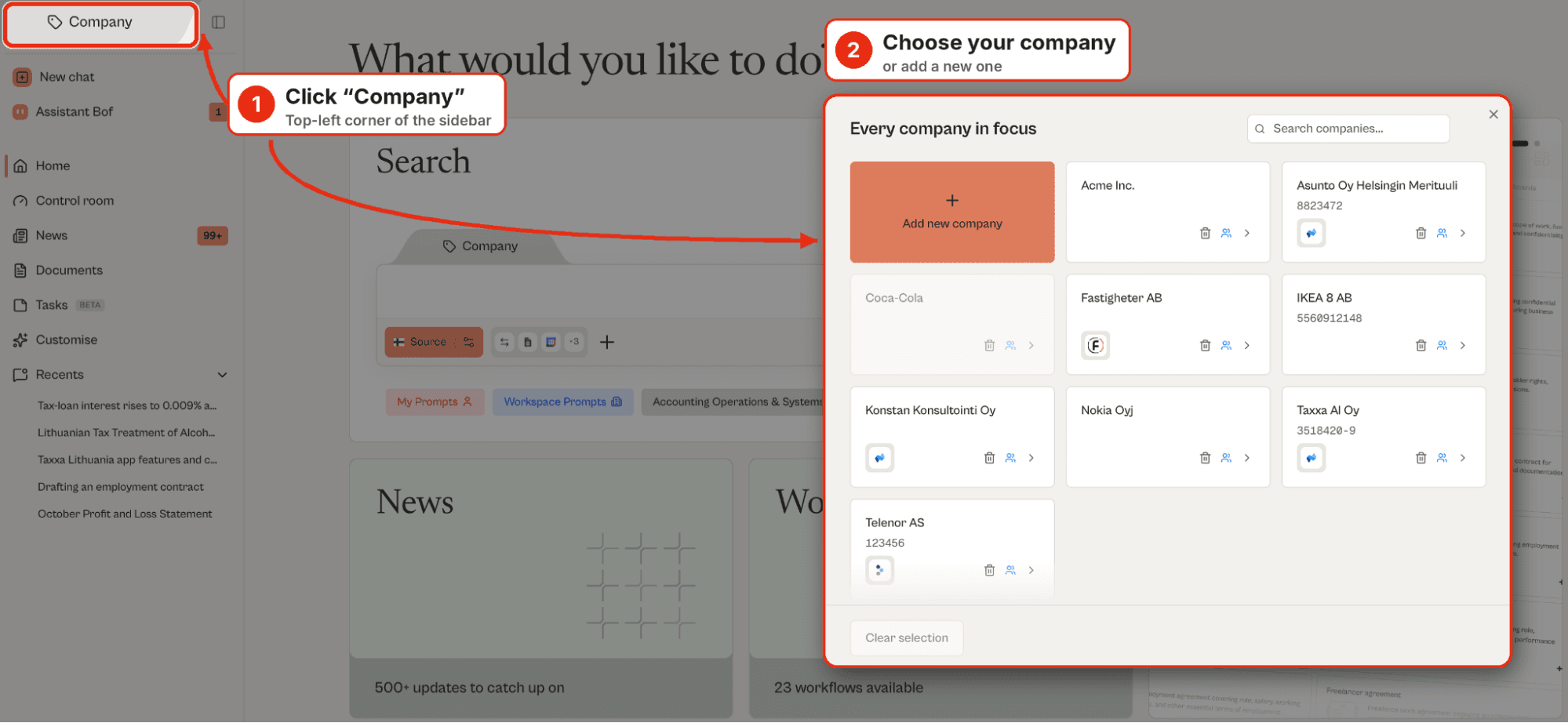
In Taxxa, every company you work on gets its own client profile, which keeps its data, documents, tasks and connections separate. Because accounting connectors are authorized per client, each profile connects to its own ERP with its own credentials. That’s what lets an accounting firm run this workflow across dozens of clients without ever mixing up their data.
1a. Create the client profile
If you haven’t already, create a profile for the company whose invoices you want to chase. In this example, we’re working in the profile of a Finnish housing company, Asunto Oy Helsinki.
1b. Open Connectors
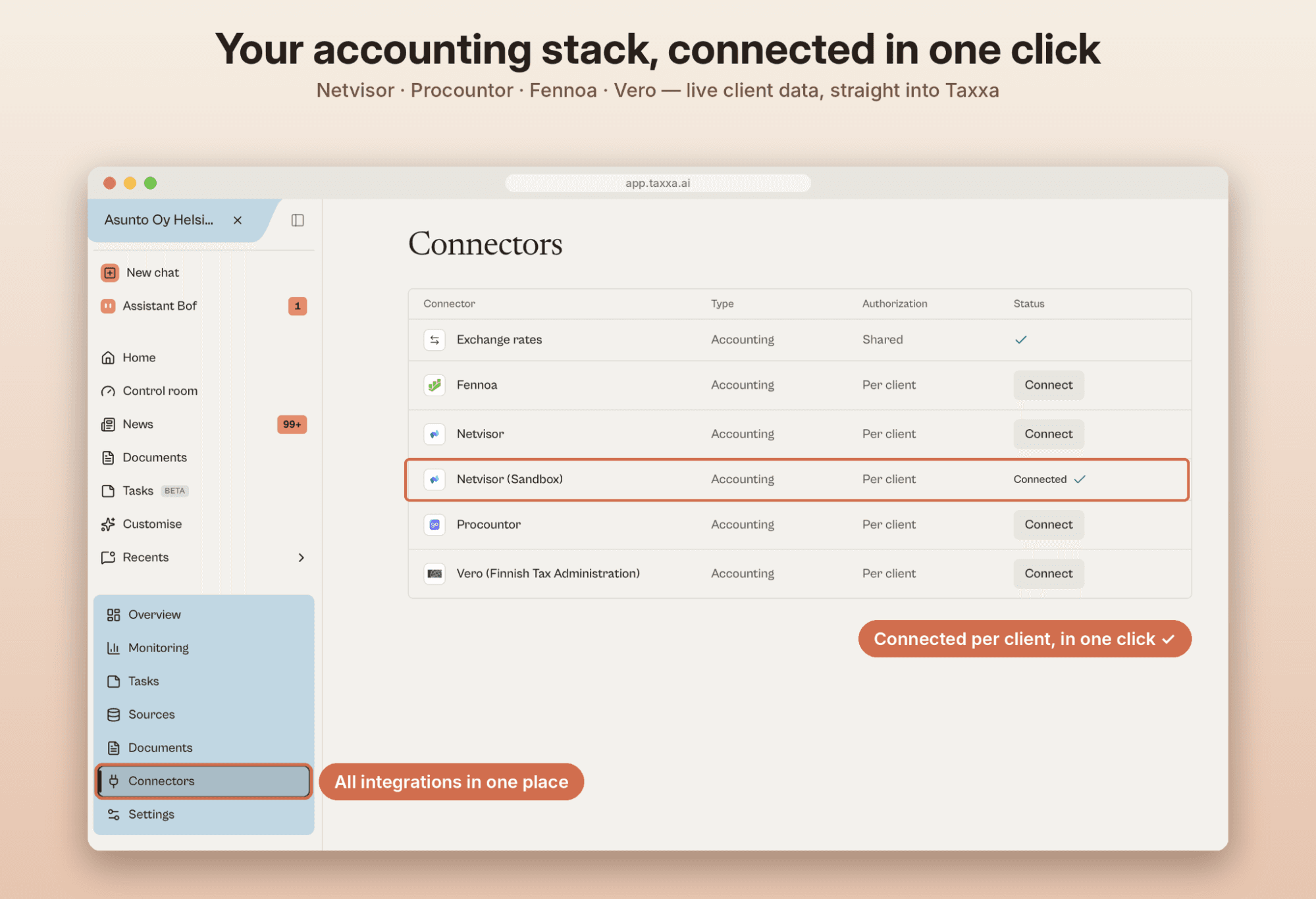
Inside the client profile, select Connectors from the left-hand menu. You’ll see every accounting system Taxxa supports, including Netvisor, Procountor and Fennoa, as well as Vero, the Finnish Tax Administration. Click Connect next to the system your client uses, which in this example is Netvisor.
1c. Enter your Netvisor API credentials
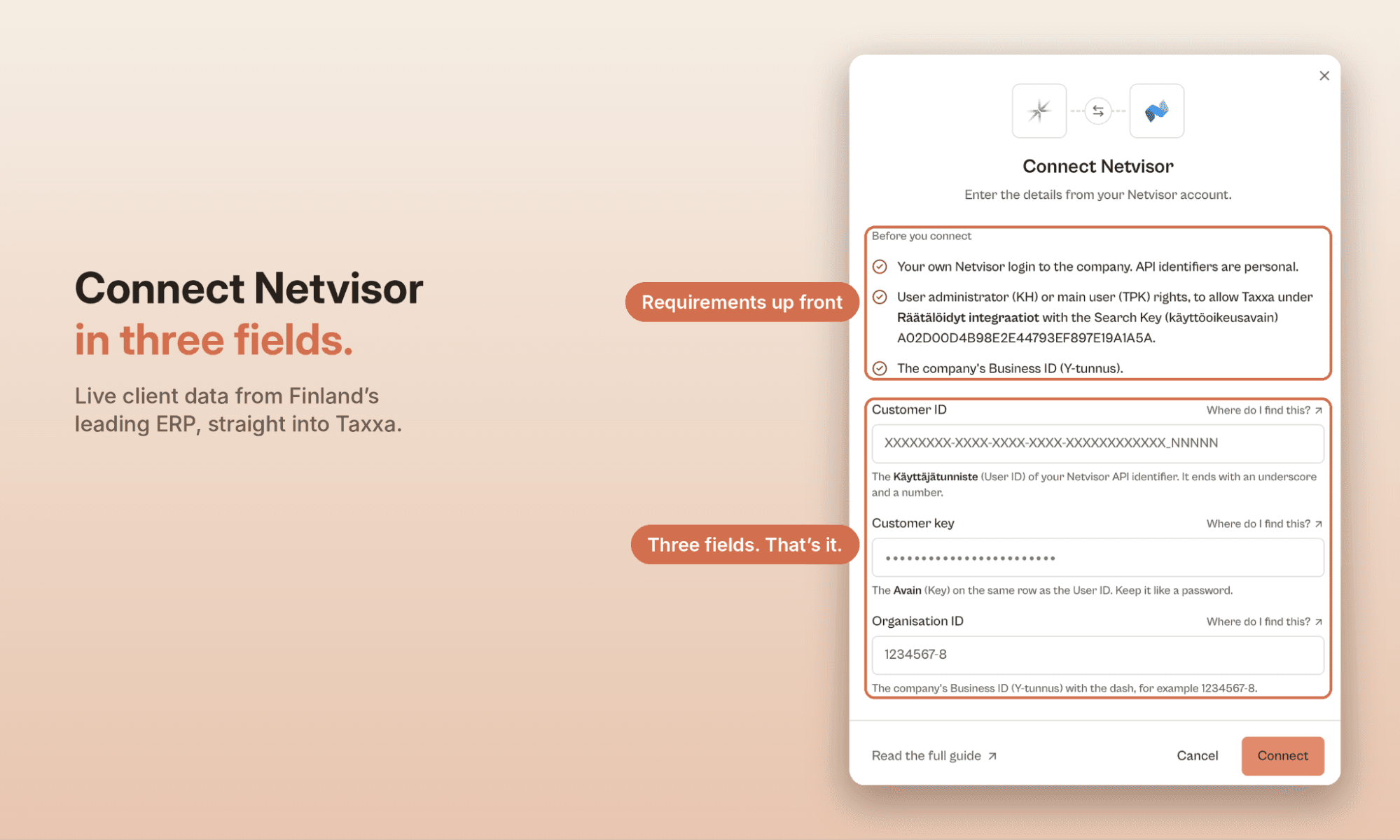
Taxxa connects to Netvisor using your personal Netvisor API identifiers. To set this up, you’ll need:
- Your own Netvisor login for the client company. API identifiers are personal, so each user connects with their own.
- User administrator (KH) or main user (TPK) rights in Netvisor. These let you authorize Taxxa under Räätälöidyt integraatiot (Custom integrations), using the key shown in the Taxxa connection window.
- The company’s Business ID (Y-tunnus).
Then fill in the three fields:
- Customer ID: the Käyttäjätunniste (User ID) from your Netvisor API identifier. It ends with an underscore and a number.
- Customer key: the Avain (Key) on the same row as the User ID. Keep it as safe as a password.
- Organisation ID: the company’s Business ID, including the dash (for example, 1234567-8).
Click Connect. If you get stuck, each field has a Where do I find this? link, and Read the full guide walks you through generating API identifiers in Netvisor step by step.
Once the connection succeeds, the status changes to Connected and Taxxa can read the client’s sales invoices. You only need to do this once per client.
Step 2: Connect your email account from the chat box
Email is connected in a different place from the Connectors page in Step 1. That page is for each client’s accounting system, while your email account belongs to you as a user. You connect it once from the chat box, and it’s then available for every client you work on.
To add it:
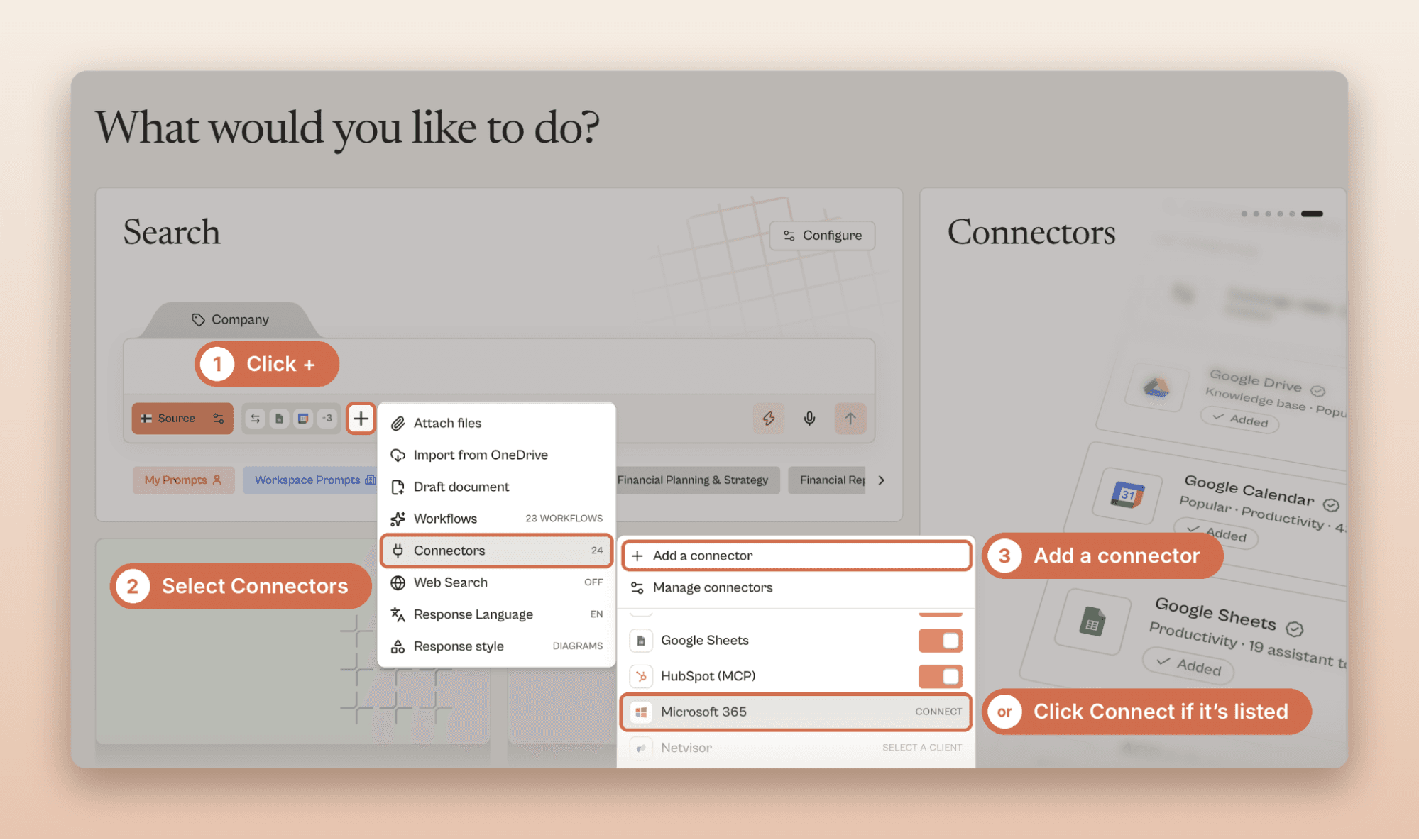
- On the Taxxa home screen, click the + icon in the chat box.
- Select Connectors to open the connectors library.
- Click Add a connector and choose your email provider: Gmail, Outlook or Microsoft 365.
- Sign in to your email account and approve access.
That’s it. Taxxa can now send emails from your own address.
Step 3: Ask Taxxa for your overdue invoices
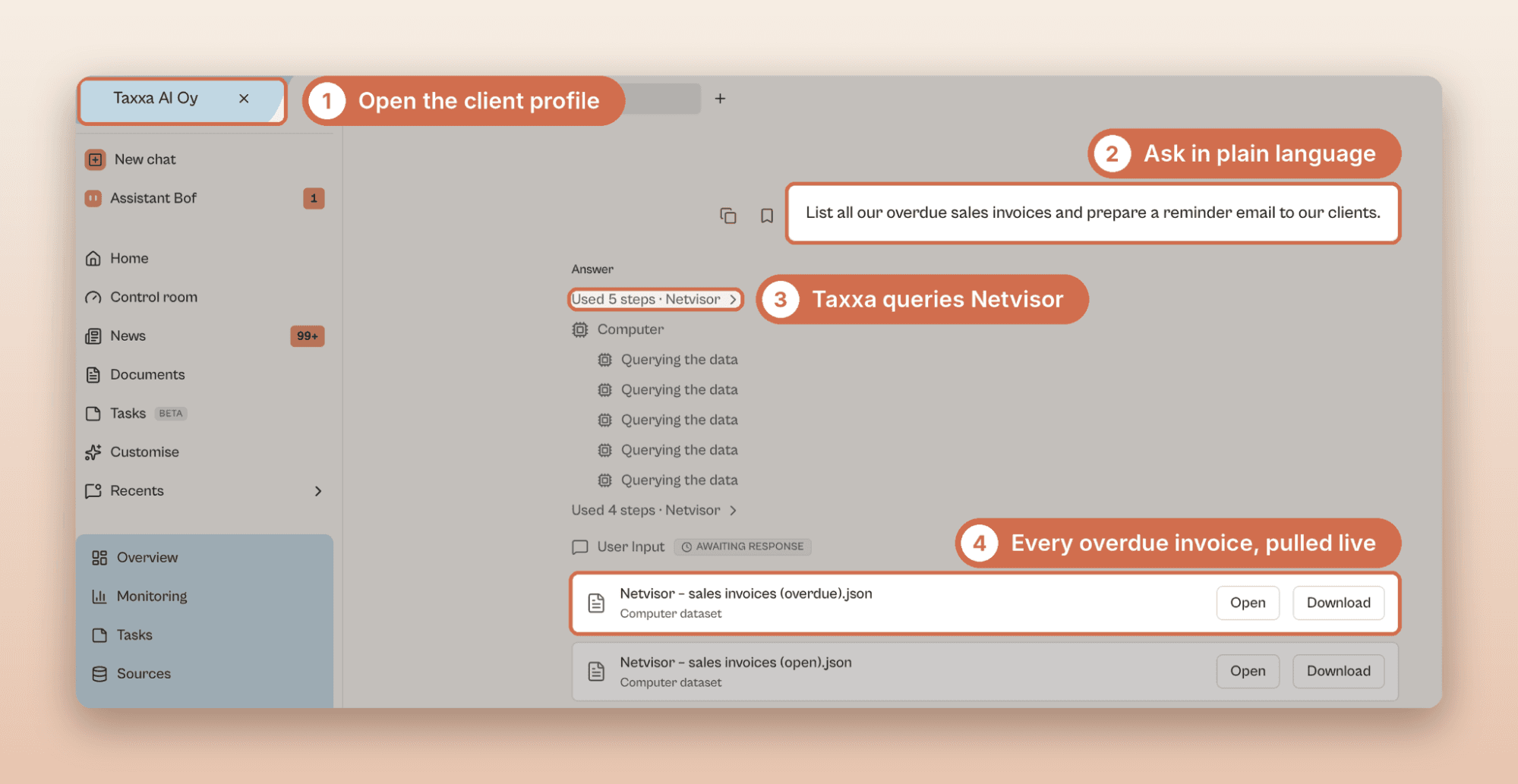
Open a new conversation in the client’s profile and describe what you need in plain language. We typed:
“List all our overdue sales invoices and prepare a reminder email to our clients.”
Taxxa queries Netvisor and returns every sales invoice past its due date, showing the customer, invoice number, amount, due date and number of days overdue.
Step 4: Answer Taxxa’s clarifying questions
Before drafting anything, Taxxa checks the details that shape what each email should say. In our case, it asked two questions:
- What payment deadline should the reminders set? This can be a specific date or a term such as “within 7 days.”
- Should the emails be written in English or in each customer’s local language? Taxxa had already noticed that the twelve reminders went to customers in several countries, so it offered to match each one. We chose the local language.
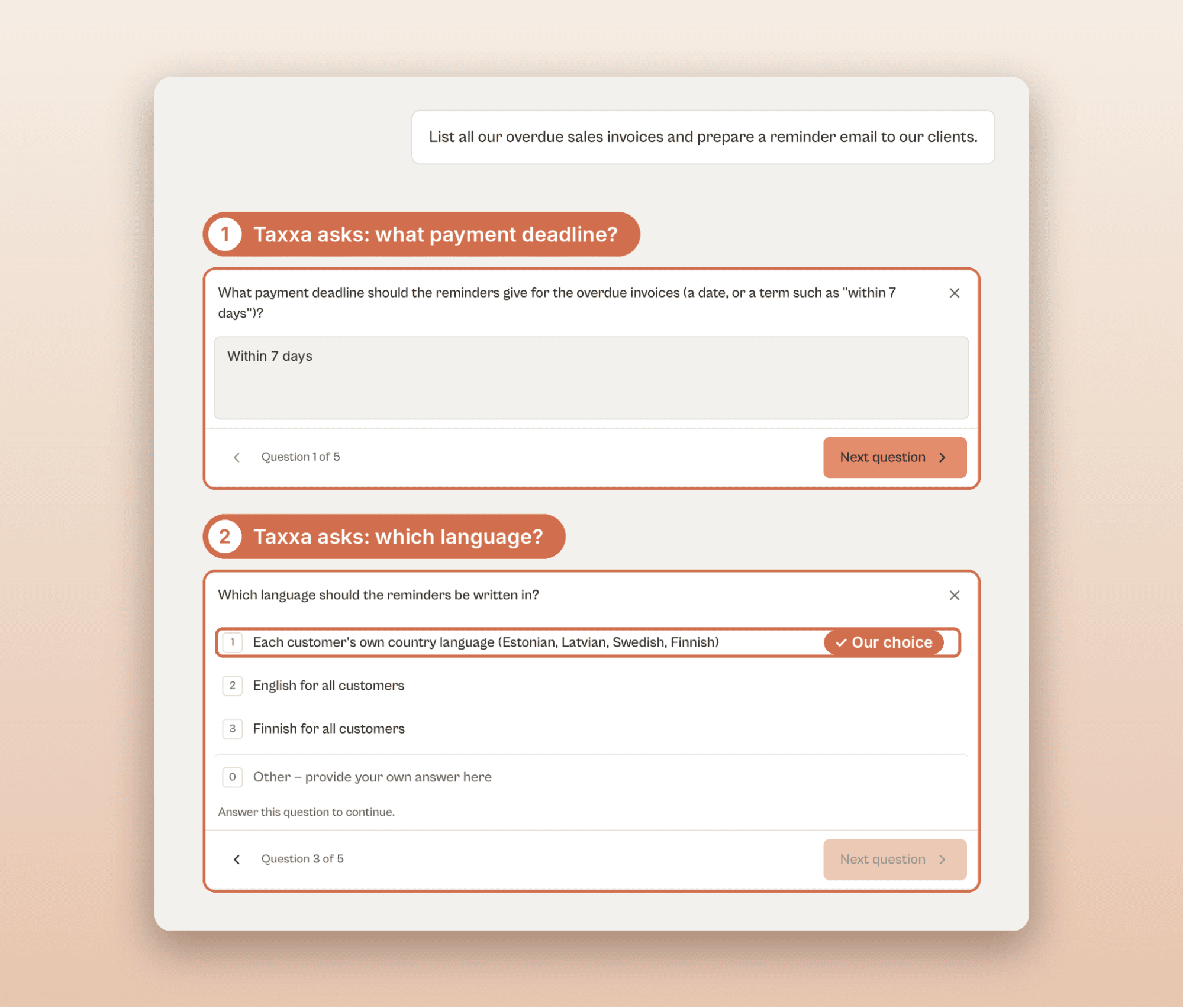
This step helps you avoid the most common mistake in automated reminders: sending the same generic message to everyone.
Step 5: Review the drafted reminders
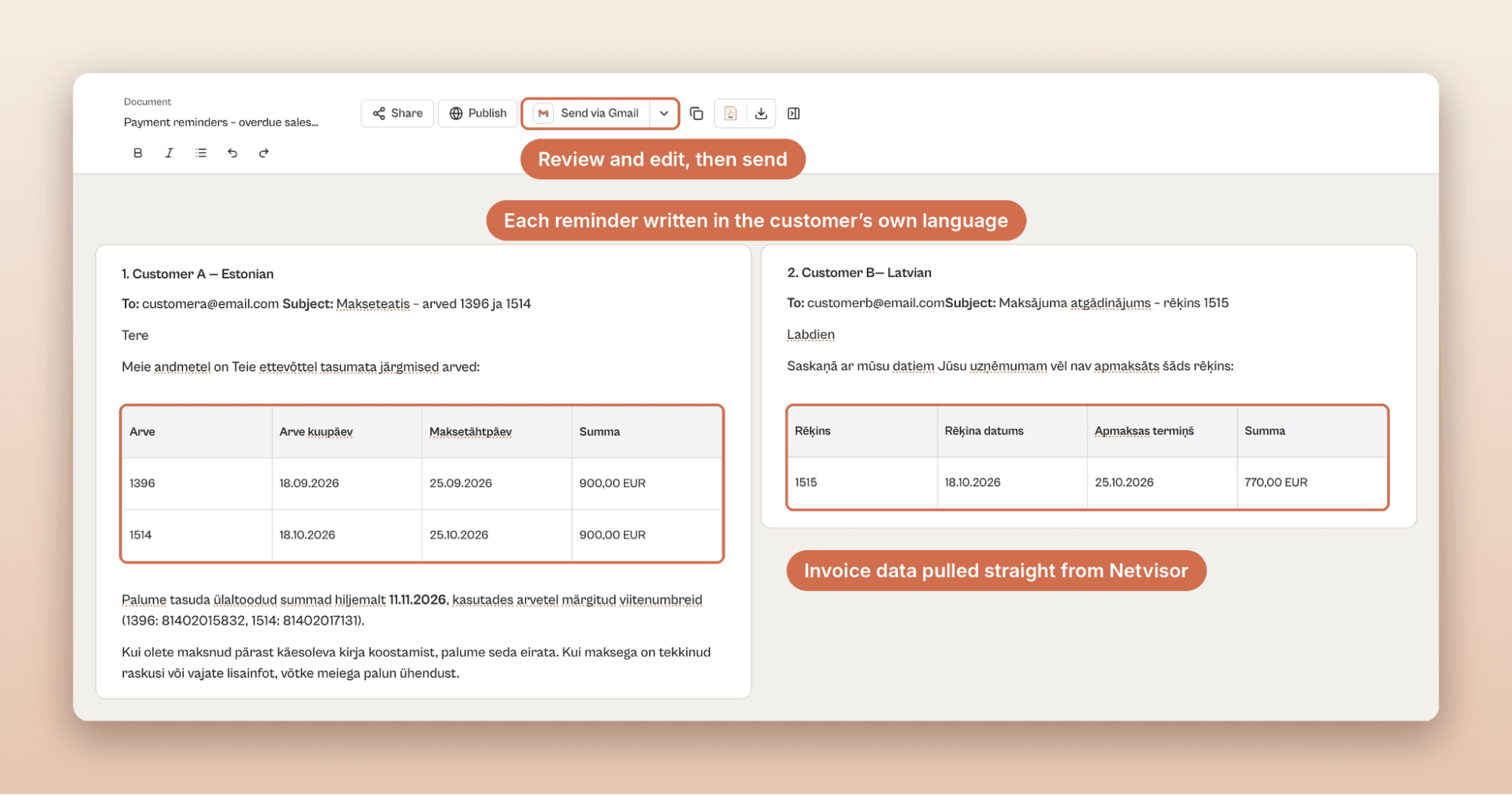
Taxxa drafted all twelve emails in a friendly, professional tone, each in the customer’s own language: Estonian, Finnish, Latvian, Swedish, and English for the UK customer. Every reminder includes the correct invoice number, amount, original due date and payment details, pulled directly from Netvisor.
Read through each draft before sending. You can ask Taxxa to adjust the tone, shorten a message or add a personal note for a specific customer.
Step 6: Send the reminders
When you’re happy with the drafts, tell Taxxa to send them. The emails go out from your connected Gmail, Outlook or Microsoft 365 account, so replies come straight to your inbox and every reminder is saved in your Sent folder.
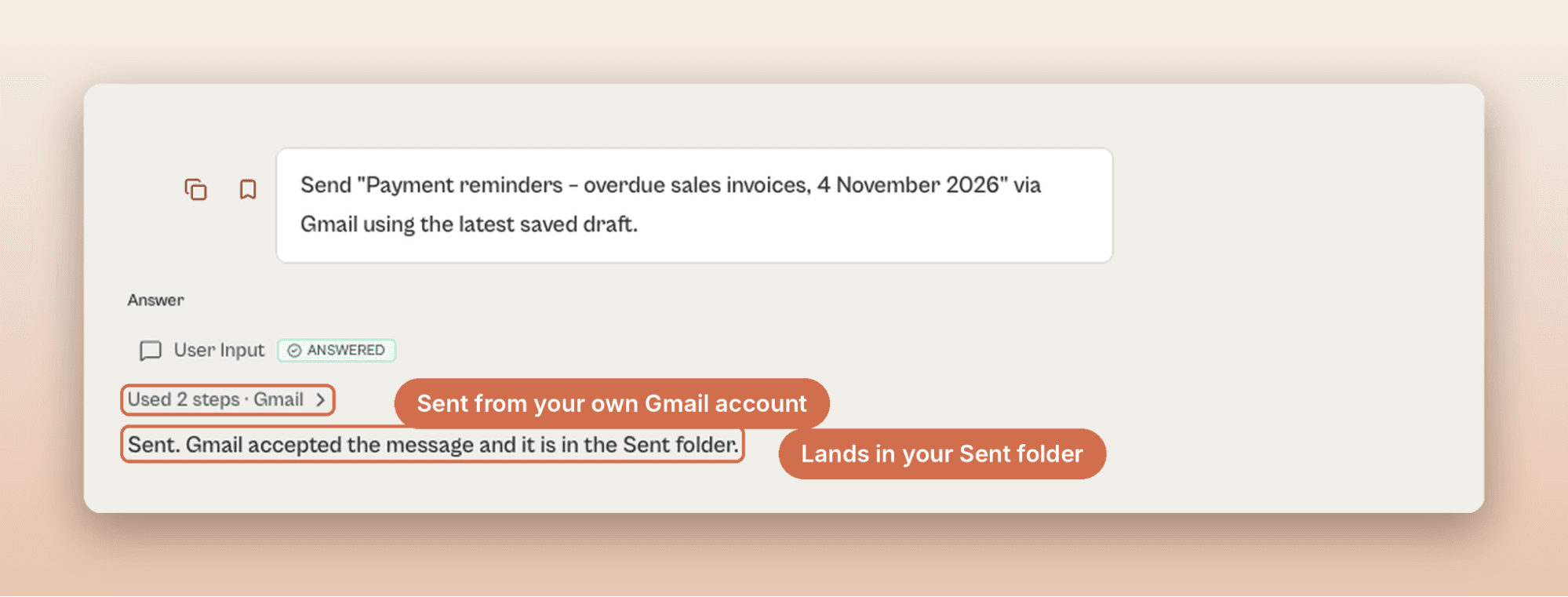
And that’s the whole workflow. No exporting reports from Netvisor, no switching to your email client, no copying invoice numbers by hand and no translating.
Variations to try
Once you’ve run the basic workflow, you can adapt the prompt for other collection scenarios:
- Second reminders: “Prepare a firmer second reminder for invoices more than 30 days overdue and include the late payment fee.”
- Prioritize by amount: “List overdue invoices above €5,000 and draft reminders only for those.”
- Internal summary first: “Summarize our overdue receivables by customer and country before drafting any reminders.”
- Single customer: “Draft one reminder to [customer name] covering all their open invoices.”
Why this matters for accounting teams
Late payments hurt cash flow, but the bigger cost is often the time spent chasing them, or the reminders that never go out because nobody had the time. When a round of reminders takes minutes instead of an afternoon, it actually happens on schedule. And a reminder in the customer’s own language feels more like a service than a demand, which can make people more willing to pay promptly.
Try it yourself
This is one of many workflows we’ve built for accounting professionals across Europe, connecting Taxxa to the tools you already use, including Netvisor, Procountor, Fennoa, Gmail, Outlook and Microsoft 365.
Book a demo to see this and other use cases running on your own data.